The Audit page is where you check your store's content and technical setup with Risify. It reviews your metadata, broken links, structured data and page speed, and gives your store an AI & Search Audit score so you can see where to improve.
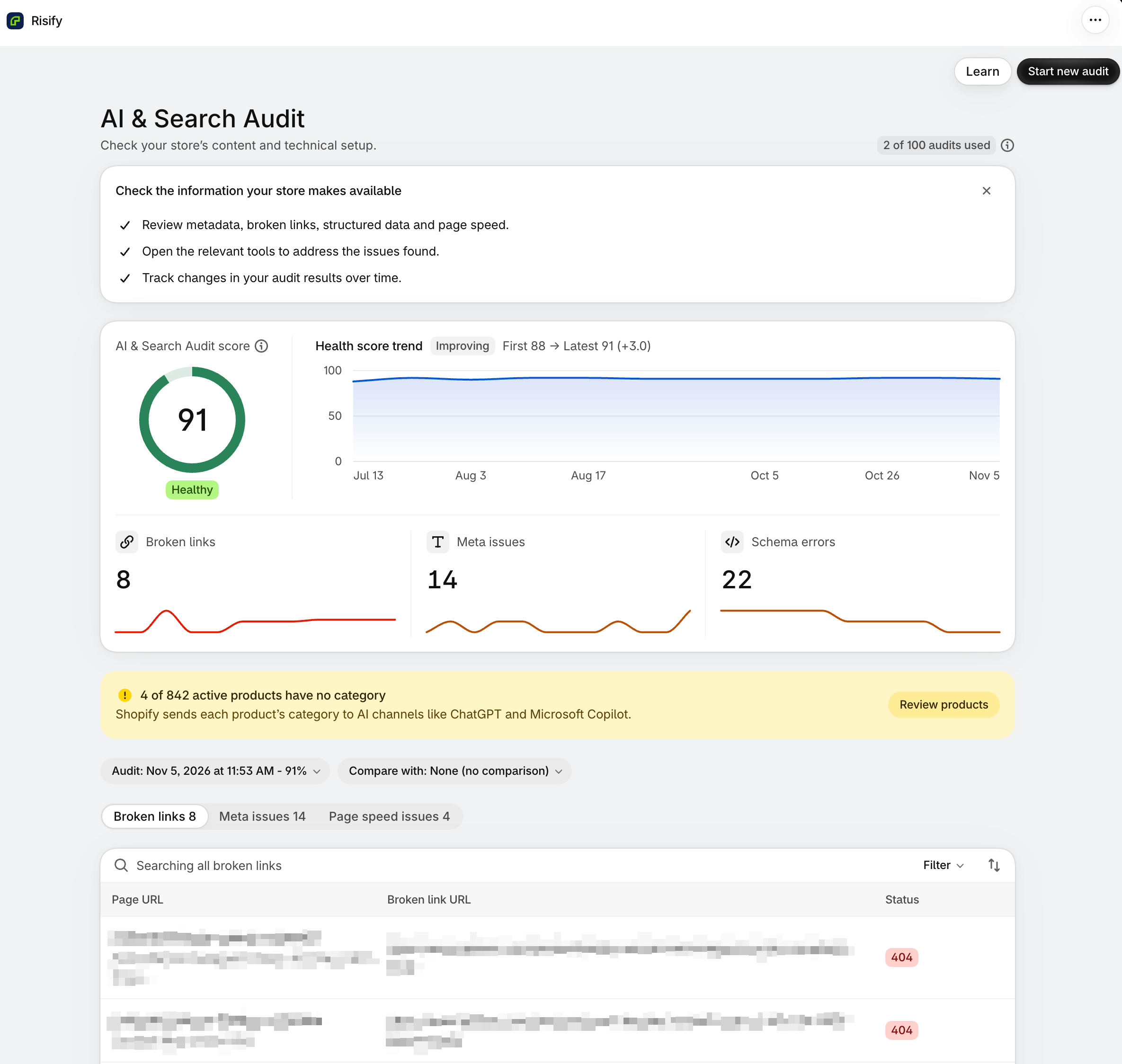
This guide walks you through how to run an audit, what each part of the results means, and how to track your progress over time.
👉 Curious how store audits can help your Shopify store? Browse how to run a Shopify SEO audit to learn best practices and get the most value from it.
What Is the AI & Search Audit Score?
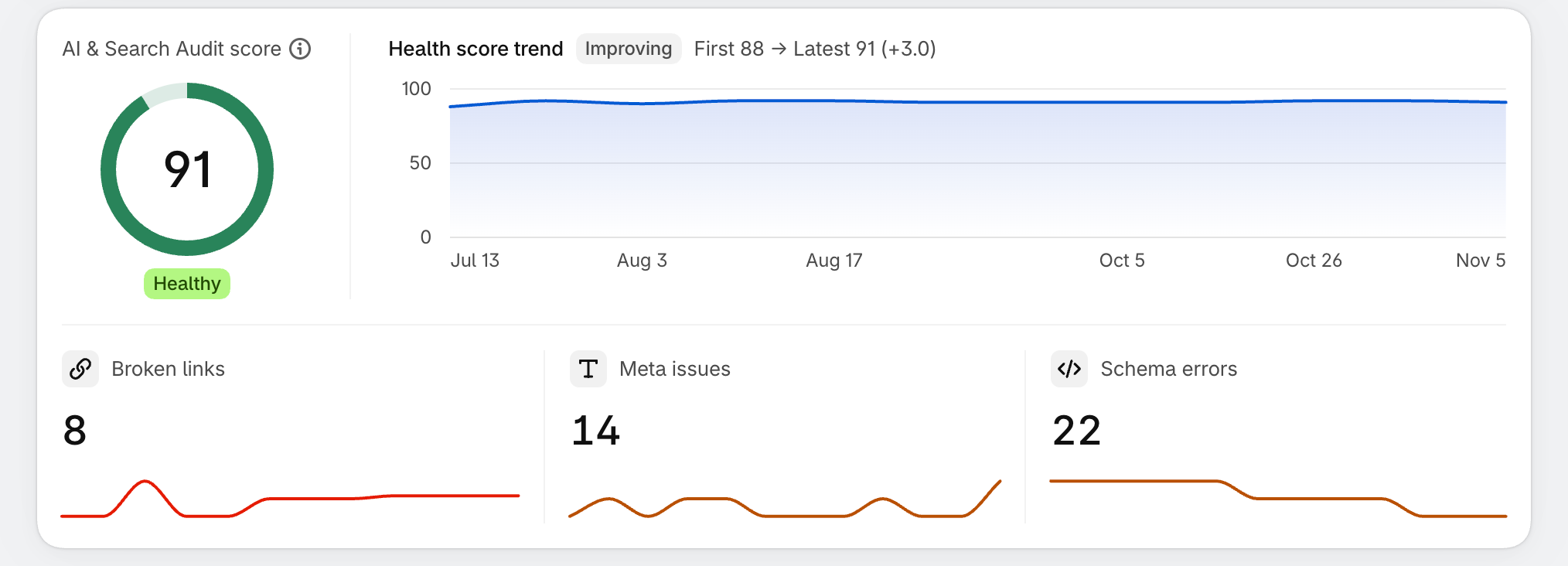
Your AI & Search Audit score is a single number, out of 100, that reflects how well your store is set up for search engines and AI tools. It combines the issues found in your metadata, links, structured data and page speed into one overall result.
A higher score means fewer issues. A lower score means there are areas to work on. Next to the score, the Health score trend chart shows how your score has changed across your audits, from your first audit to your latest, and whether it is stable, improving or declining.
Use the score to measure progress, compare audits and decide where to focus first.
How to Run Your Audit With Risify
Follow these steps to run an audit and understand the results.
Step 1: Start an Audit
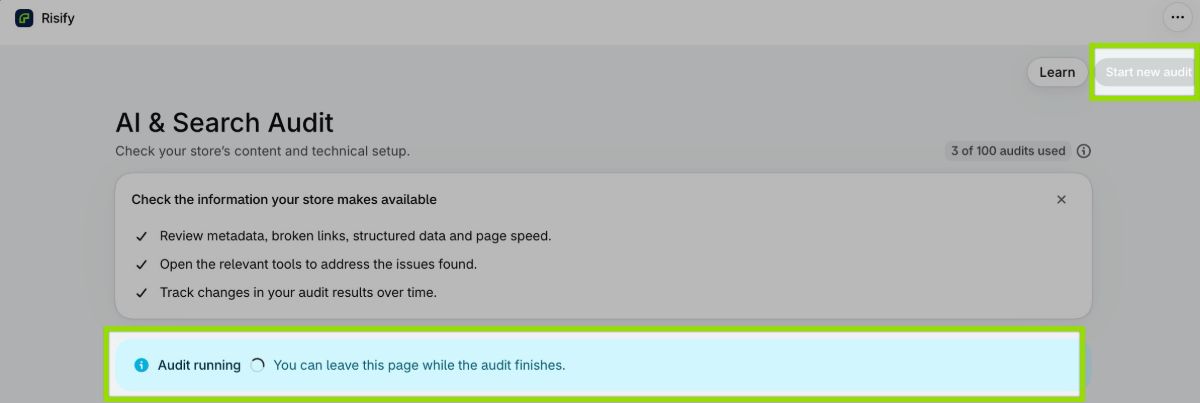
In your Shopify admin, go to Apps, open Risify, and click Audit in the left-hand menu.
Click Start new audit . Risify reviews your store's pages, links, structured data and performance. When it finishes, you will see your score, the trend chart and a summary of the issues found. The number of audits you have used this month is shown at the top of the page.
Note: If your storefront is password protected, Risify can only reach your password page, so the results will not cover your products, collections and pages. Remove the password, or run the audit once your store is live, to get full results.
Step 2: Review the Summary
Below the score, three cards show the number of issues found in each area:
- Broken links: links on your store that lead to pages that no longer exist or return an error.
- Meta issues: meta titles and descriptions that are missing, too long or duplicated.
- Schema errors: problems in the structured data your store publishes.
Use the Audit dropdown to choose which audit you are viewing, and Compare with to put it next to an earlier audit and see what changed.
Step 3: Explore the Issues
Under the summary, three tabs list the issues in detail.
1. Broken links
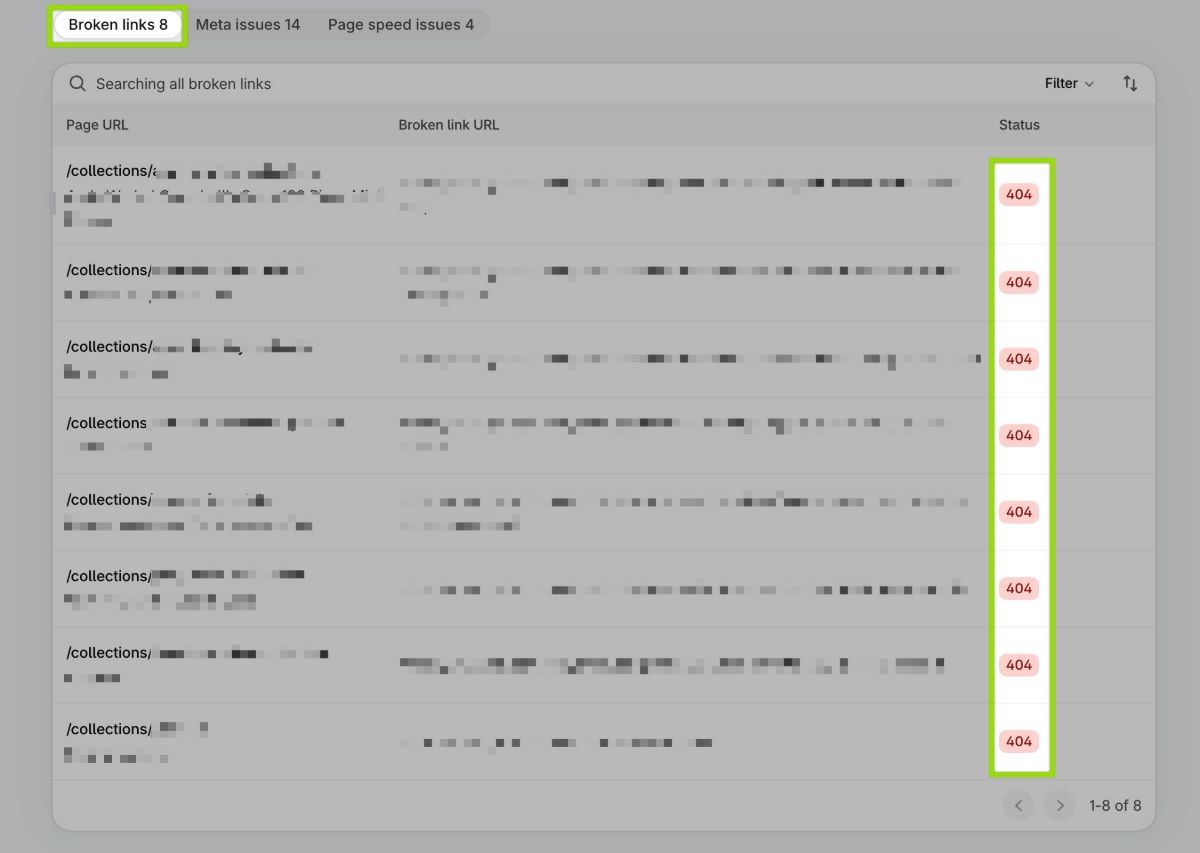
Risify scans your store for links that lead to pages that no longer exist or return an error, such as a 404 Page Not Found. Broken links affect both visitors and search engines, because neither can reach the content behind them. Each broken link shows the affected page so you can fix or redirect it.
2. Meta issues
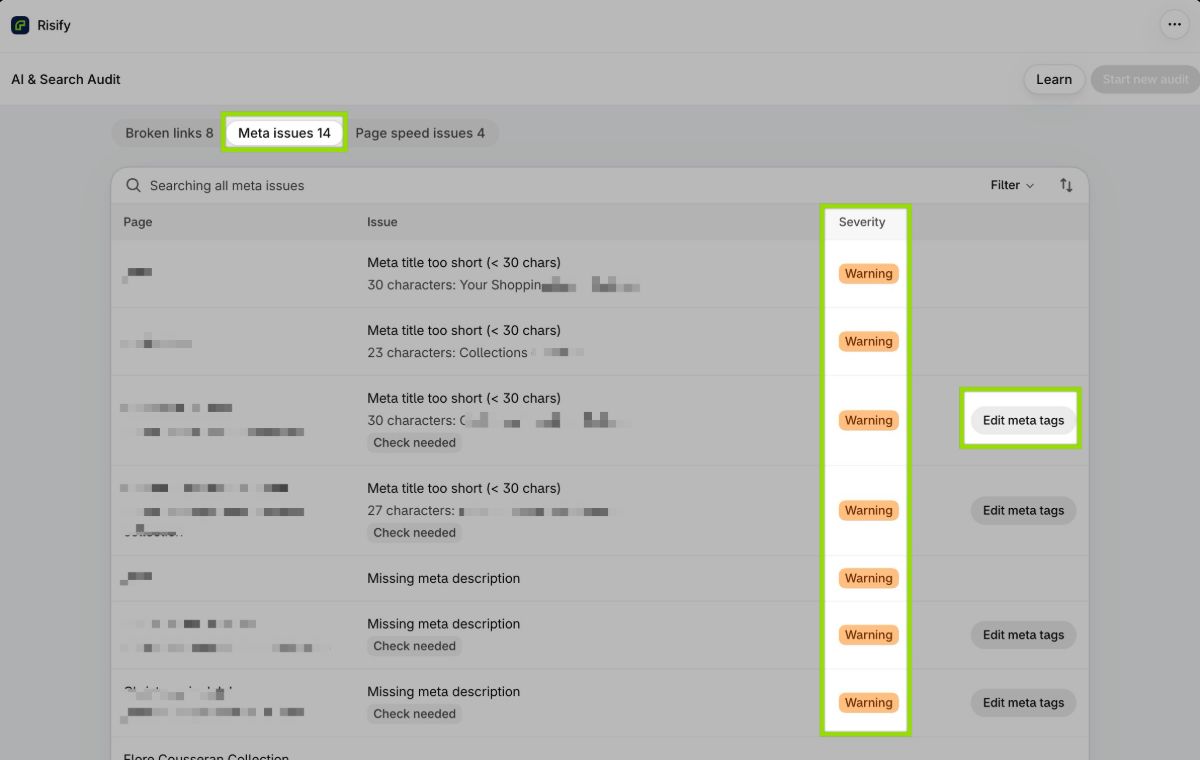
Meta titles and descriptions are the text snippets that appear in search results and tell search engines and AI tools what each page is about. Risify flags titles and descriptions that are missing, too long or used on more than one page.
You can fix these by clicking the Edit Meta tags button, or from the Meta Tags page, which uses the same audit results.
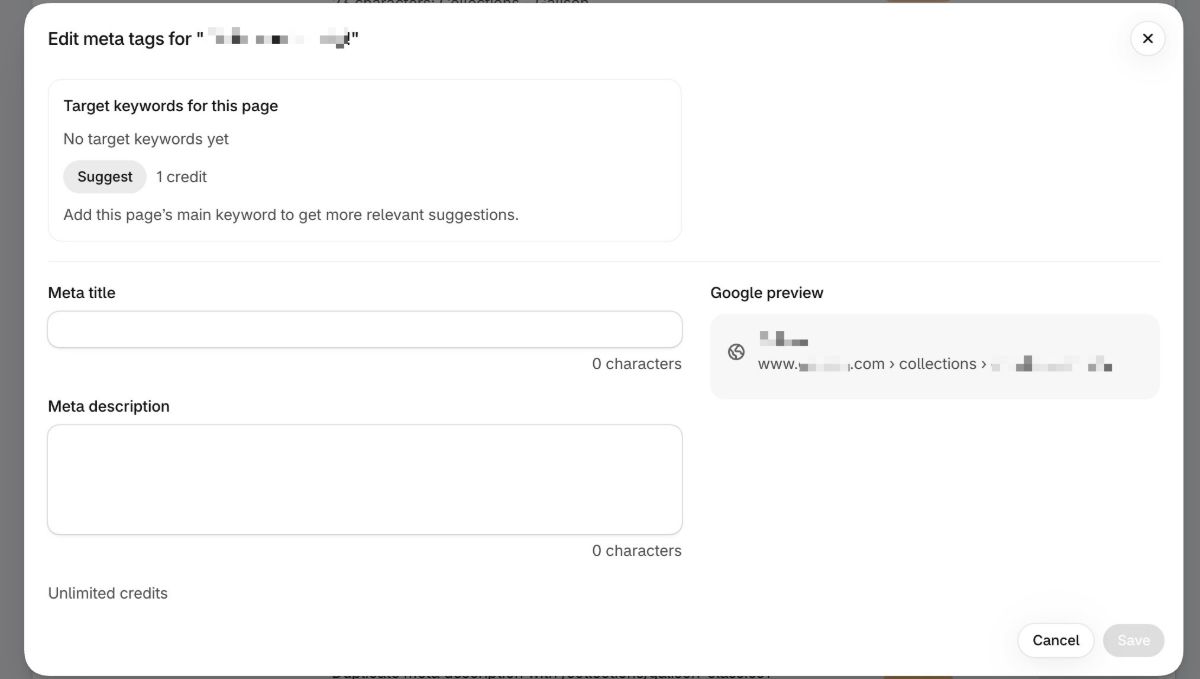
You can write the Meta title and the Meta description manually, or click the Suggest option that uses Risify AI to write new meta tags with AI credits. Saved changes update your store's metadata directly, with no theme setup needed.
3. Page speed issues
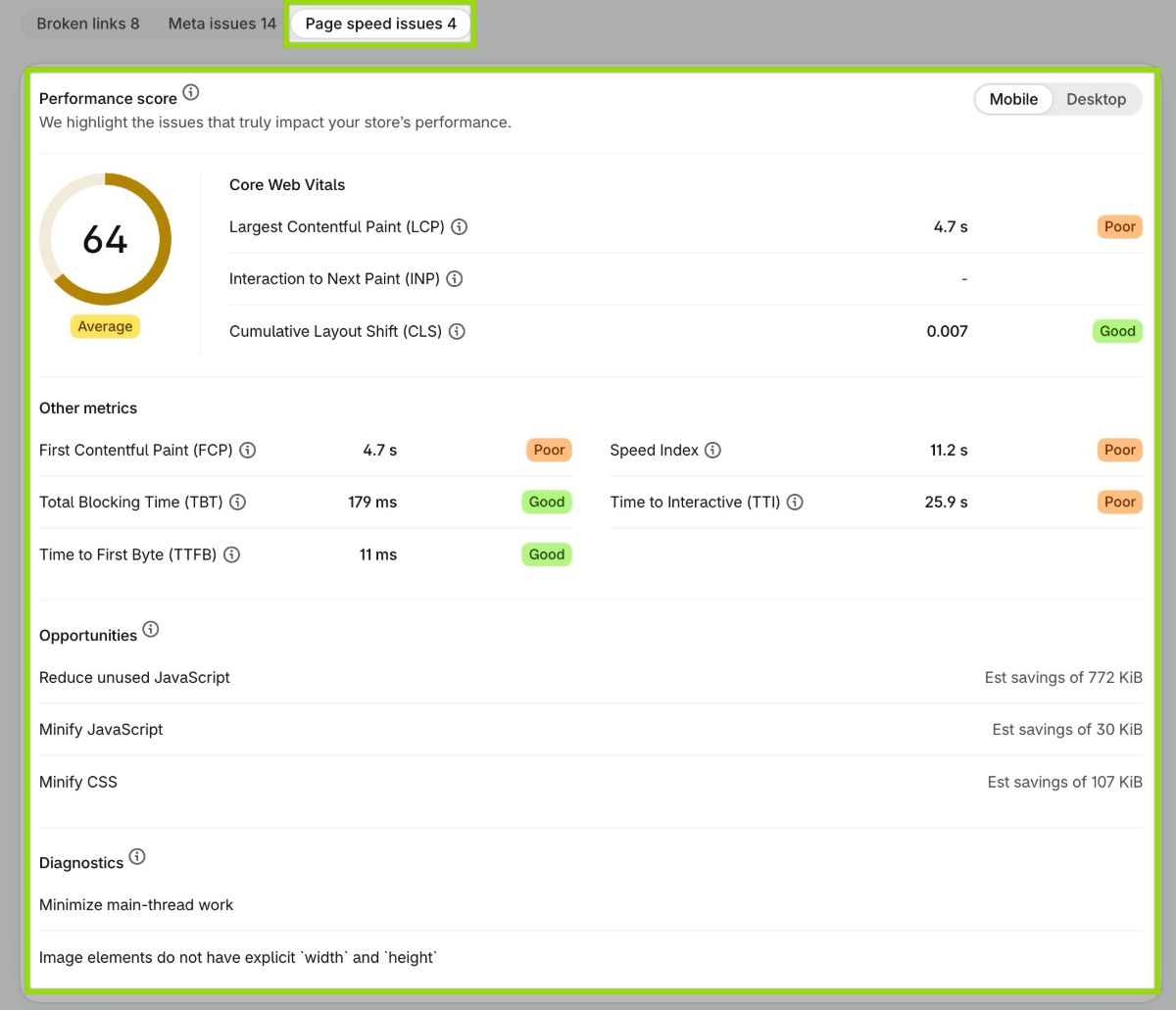
Page speed measures how fast your store loads for shoppers. A slow store frustrates visitors and affects search performance. Risify tests your store on both mobile and desktop and reports Core Web Vitals and other performance metrics, with suggestions for improving them. Switch between the mobile and desktop views to compare results.
The key metrics Risify AI & Search reports include:
- Largest Contentful Paint (LCP): How long it takes for the main image or text block to become visible.
- First Contentful Paint (FCP): Time until the first visible content element appears.
- Cumulative Layout Shift (CLS): How much page elements move unexpectedly while loading.
- Interaction to Next Paint (INP): How responsive the page feels when users interact with it.
- Time to First Byte (TTFB): The time between the browser’s request and the first byte of your site’s response.
- Speed Index: How quickly content becomes visually complete during loading.
- Total Blocking Time (TBT): Duration during which the page cannot respond to user input.
- Time to Interactive (TTI): When the page becomes fully usable.
Step 4: Fix Schema Errors
Schema errors are counted in the summary. To review and fix them, open the Structured Data page, where each schema type has its own settings. Debug mode shows the generated code on your storefront, and you can test your pages in Google from the same page.
Step 5: Audit Again and Compare
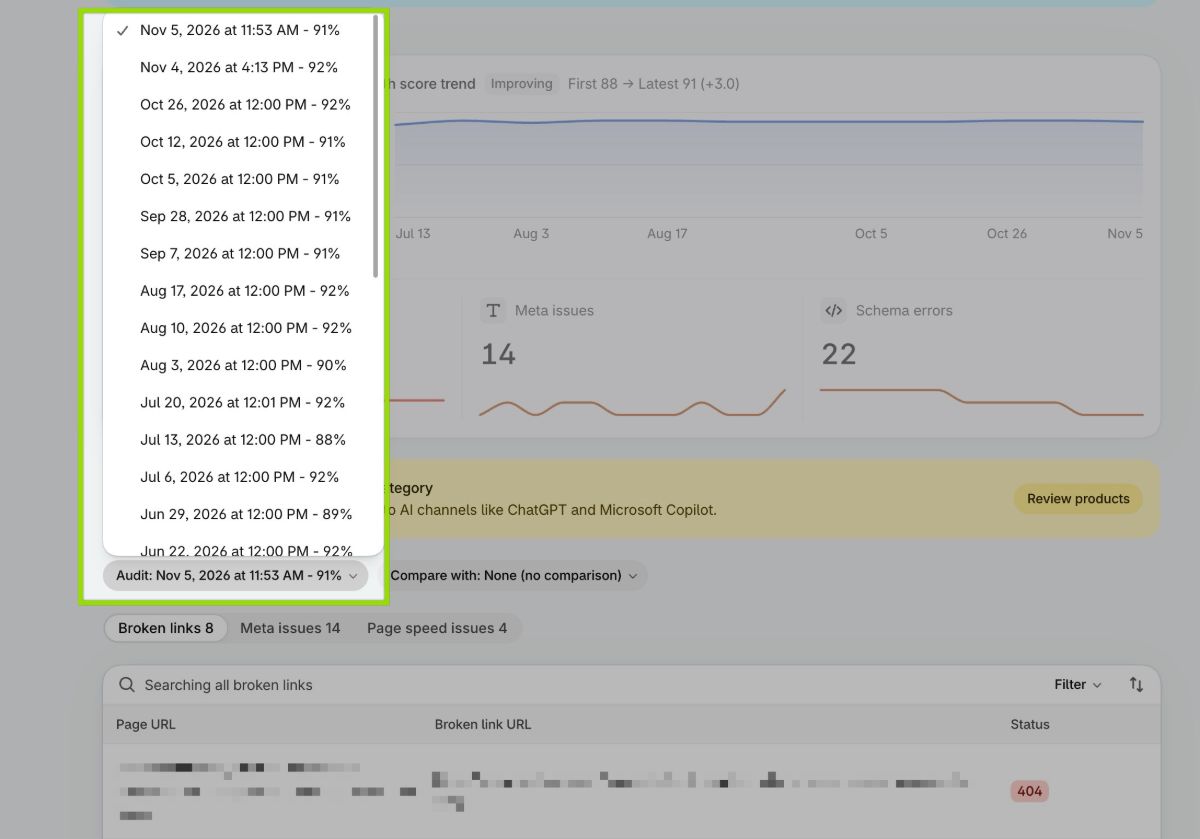
After you have made fixes, click Start new audit to scan your store again. Each new audit updates your score and adds a point to the trend chart.
To see exactly what changed, select your latest audit in the Audit dropdown and choose an earlier one under Compare with . This shows which issues are new and which have been fixed since that audit.
Summary
The Risify AI & Search Audit gives you a clear starting point and a way to measure progress. Every audit turns technical checks into a score, a trend and a list of issues across broken links, meta issues, schema errors and page speed.
As you fix issues and run new audits, the score and trend chart show whether your changes are working. The audit also connects to the tools that fix what it finds: Meta Tags for metadata and Structured Data for schema.