When you open Risify inside your Shopify admin, everything is organized in a left-hand sidebar menu. Each menu item corresponds to a core feature. This guide walks you through what each section does and where to find what you need.
The Sidebar Menu
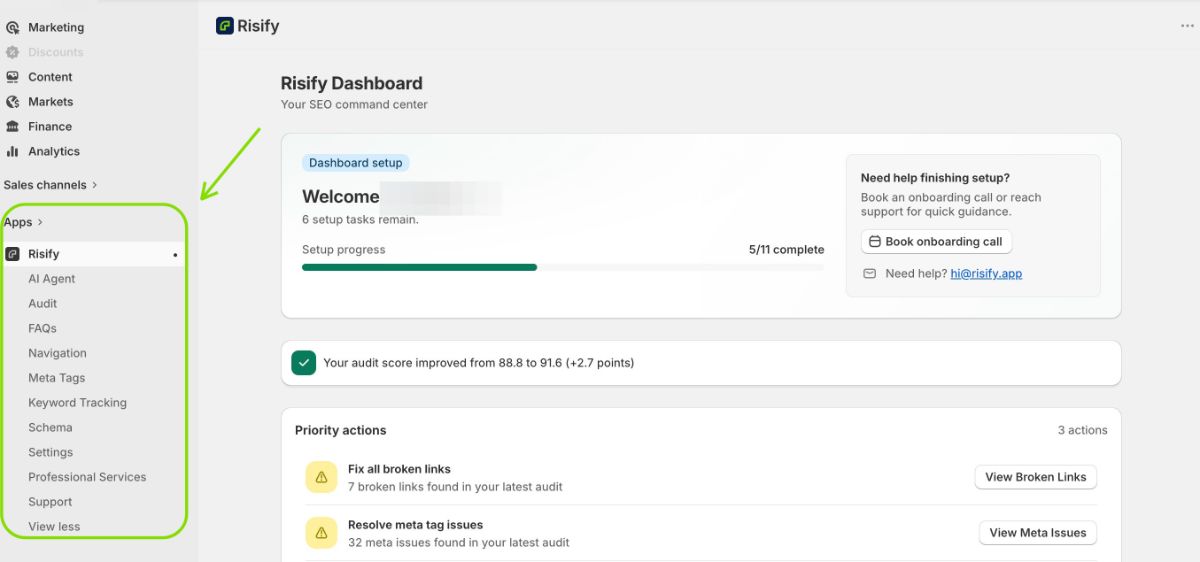
Here is what you will see in the left-hand navigation when you open Risify:
Store Audit
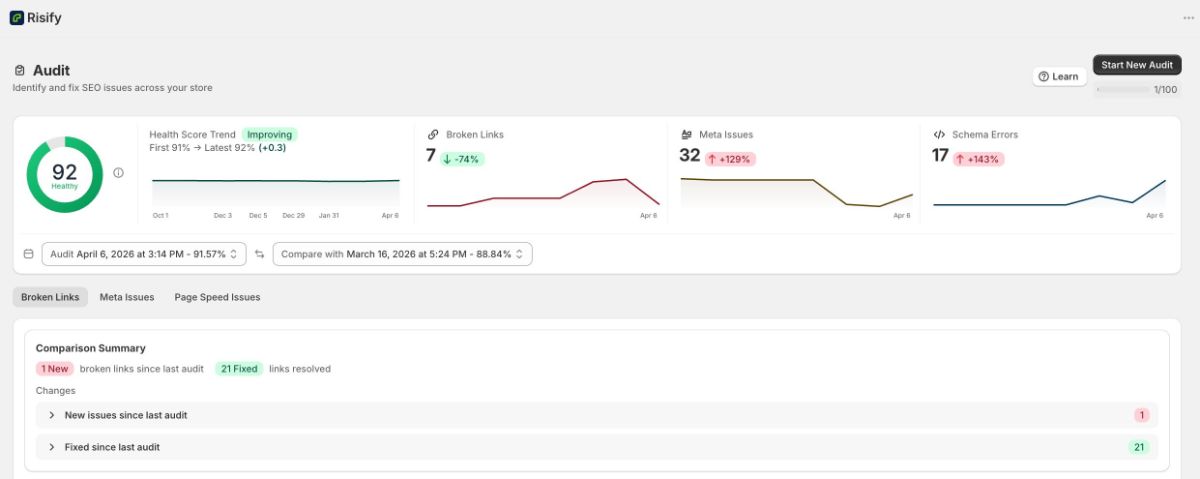
This is where you run SEO health checks on your store. Click Start Your First Audit (or Start New Audit for subsequent scans) to have Risify analyze your store for broken links, meta tag issues, and page speed problems. Your Health Score appears at the top, and you can view past audits by clicking the date dropdown.
Keyword Tracking
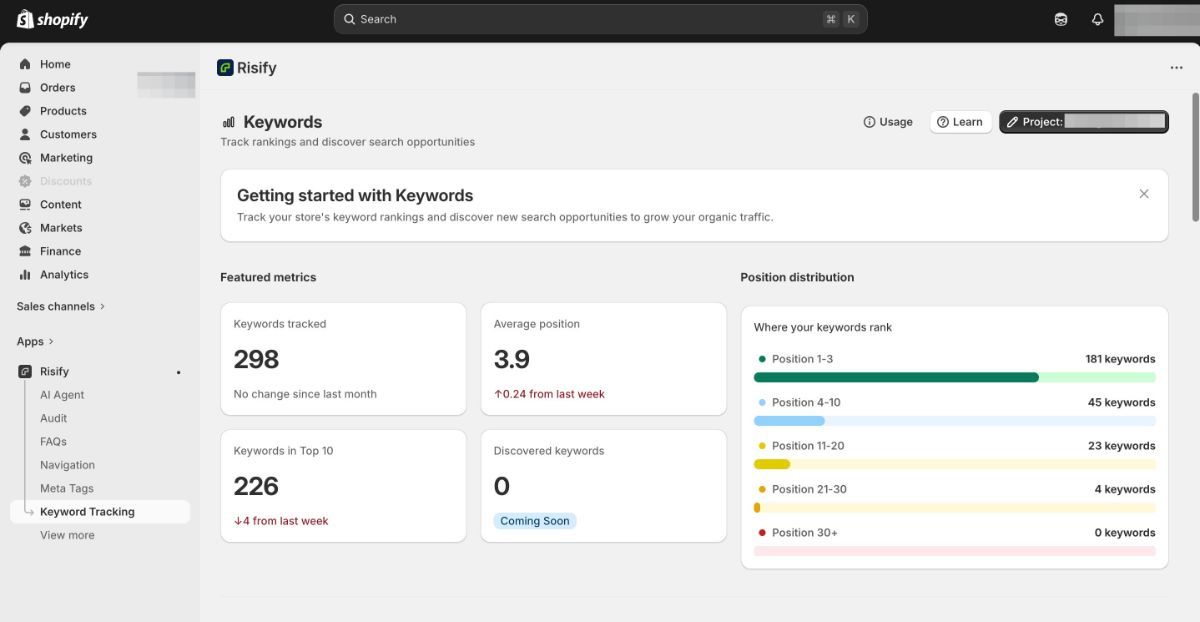
This is where you create projects and track how your store ranks for specific keywords. You can monitor ranking position, movement, top 10 visibility, and the URLs that rank for each keyword. Each project is configured with a domain, country, language, and device type.
Meta Tags
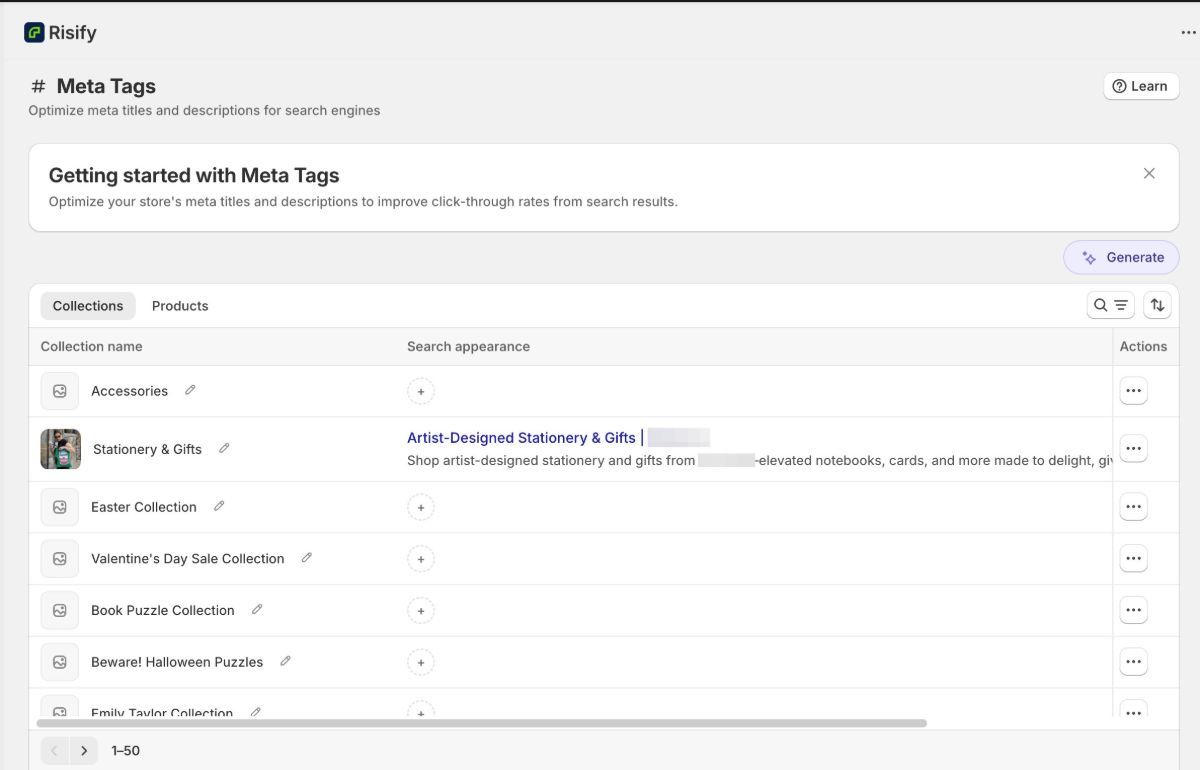
This section lets you view and edit meta titles and meta descriptions for all your products and collections from one screen. Switch between the Collections and Products tabs at the top to find what you need. Click Edit on any item to update its metadata with a live search preview.
Navigation
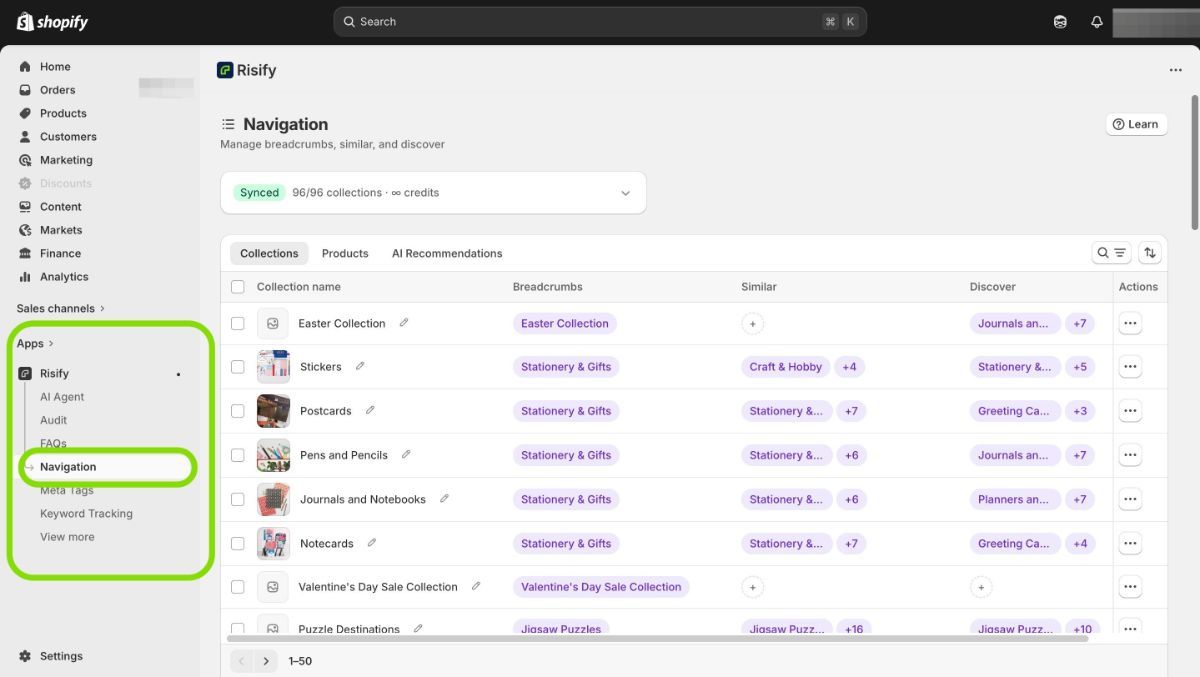
The Navigation tab is the central hub for three features: Breadcrumbs, Similar, and Discover. You will see your collections and products listed with columns showing the status of each feature. Use the Actions menu (three-dot icon) on any row to edit breadcrumb paths, assign similar collections, or add discover suggestions.
FAQs
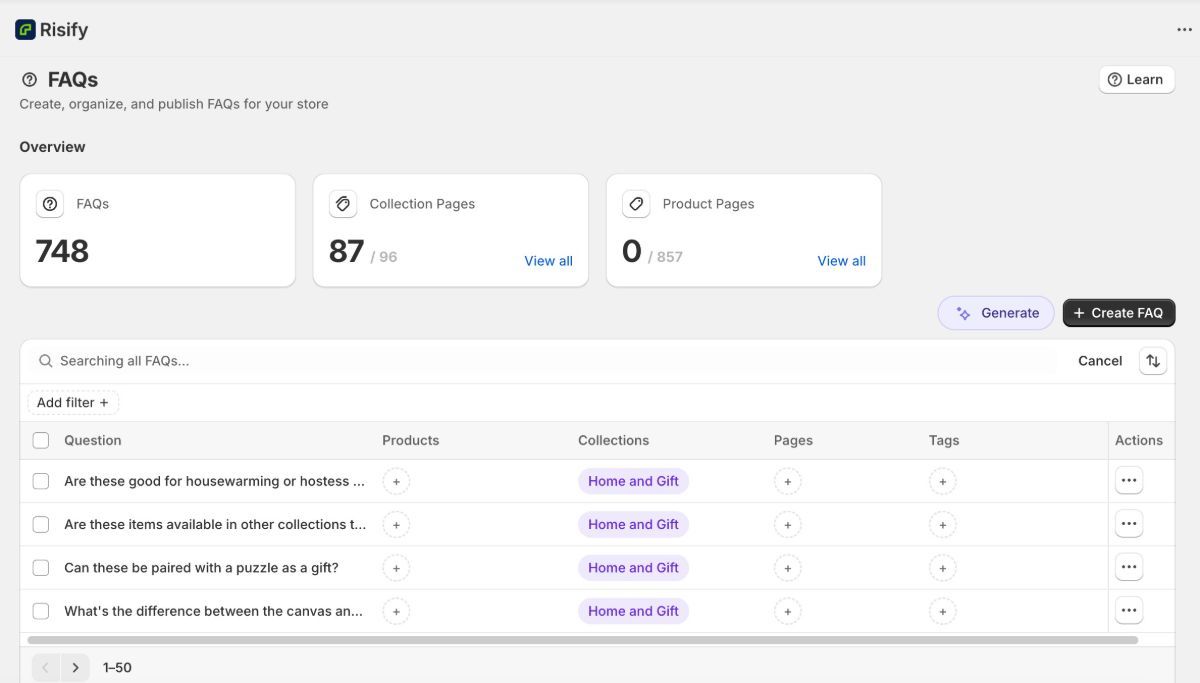
This is where you create, manage, and assign FAQ content. You can create new FAQs, add tags for organization, and assign each FAQ to products, collections, or pages. The main screen shows all your existing FAQs with their assignments.
Schema (JSON-LD)
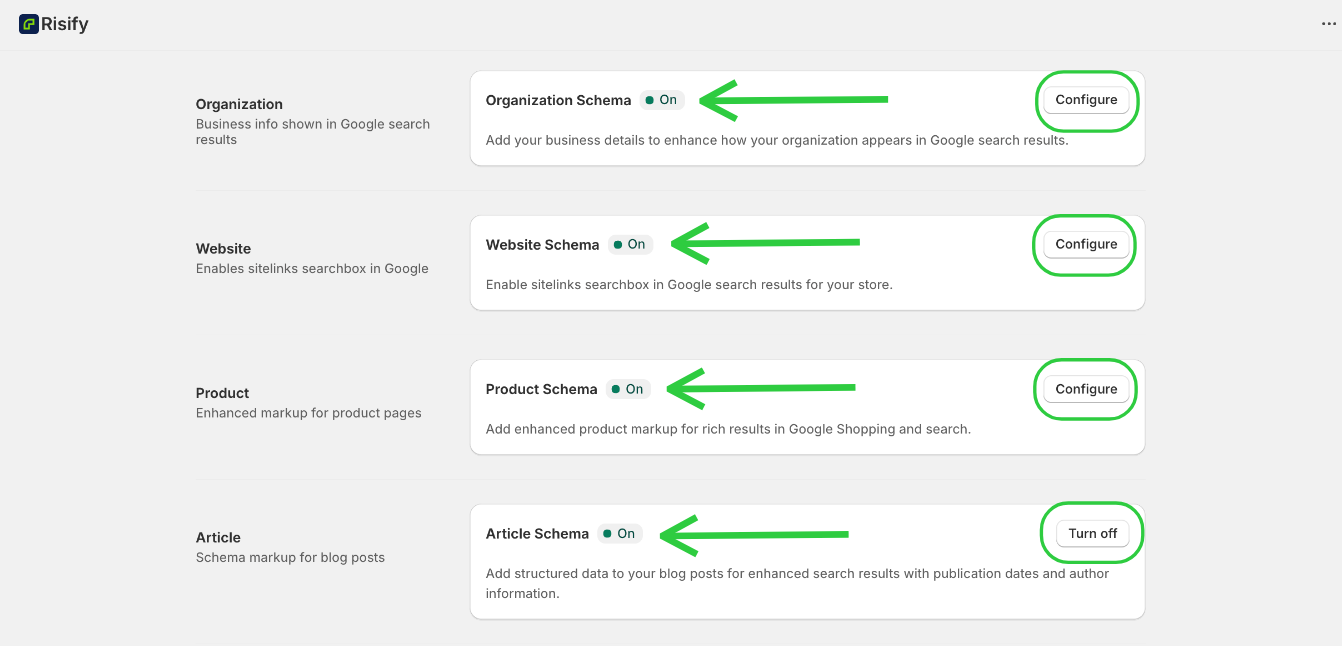
This section controls your structured data settings. You will see toggles for each schema type (Organization, Website, Product, Article, Breadcrumb, FAQ) along with configuration fields. This is also where you enable or disable Debug Mode for testing.
AI Agent
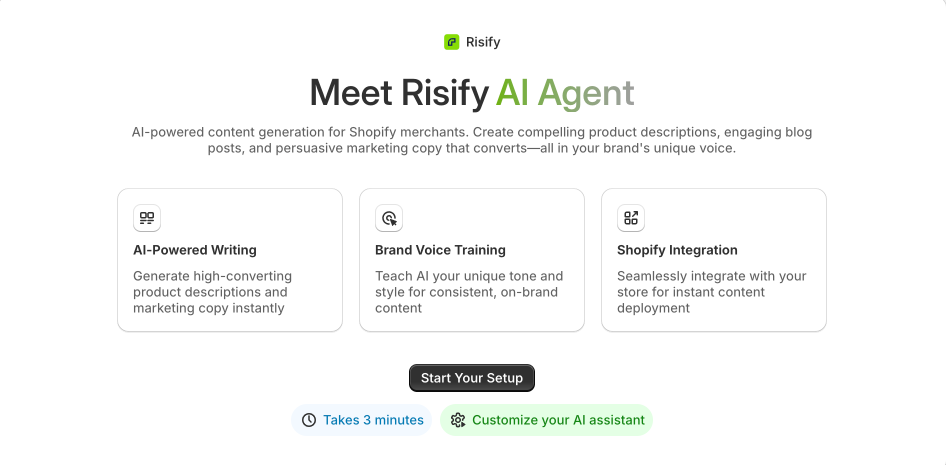
The AI Agent is your AI-powered content assistant. If you have not set it up yet, it will walk you through the onboarding process (Growth Profile). If you have already completed setup, this is where you review and edit your brand profile and manage AI credits.
Settings
The Settings section is where you manage your account, control feature toggles, and access additional services. Here is what you will find:
- Account: Update your contact details and view your store information.
- App Embed: Manage the Risify App Embed status for your Shopify theme. The app embed must be enabled for structured data and storefront features (like Breadcrumbs, Similar, Discover, FAQ, and Schema) to work on your live store. If you disable this, those features stop appearing on your storefront.
- Billing: View your current plan, manage your subscription, and access your payment history.
- FAQs: Toggle the FAQ feature on or off. When enabled, you can add FAQ sections to product, collection, and pages and manage all questions from one dashboard.
- Navigation: Toggle individual navigation features on or off:
- Breadcrumbs: Add breadcrumb navigation to your store showing customers their current location and path.
- Similar: Add related collection menus to collection pages so shoppers can browse between categories.
- Discover: Display suggestion rows on collection pages linking to related products and collections.
- Keyword Tracking: Configure your keyword tracking settings, including domain and project setup.
- MCP Integration: Enable or disable MCP access, which allows AI tools like Claude, Cursor, and Windsurf to query your store data through the Risify MCP server. This is useful if you work with AI assistants for analysis or content creation.
Professional Implementation
Purchase hands-on implementation services from the Risify team. This includes end-to-end setup covering schema de-duplication from your theme code, layout adjustments to blend Risify's theme extensions with your store's design, and site structure mapping and navigation implementation. This is a one-time service for stores that want expert setup without doing it themselves.
Summary
The Risify dashboard is organized by feature, with each section accessible from the left-hand sidebar. There is no single overview dashboard, instead, each feature has its own dedicated screen where you configure, manage, and monitor that specific part of your store’s SEO and AI visibility.