Risify's Structured Data feature gives you centralized control over the structured data (JSON-LD) your Shopify store publishes, for search engines and AI tools alike.
Instead of editing theme code or installing separate apps for different schema types, you turn each type on from one page, and Risify generates the JSON-LD for every page of your store through its app embed.
This guide explains how the feature works, which schema types you can turn on, and how to verify that your structured data is published correctly.
How Does Structured Data Work in Risify?
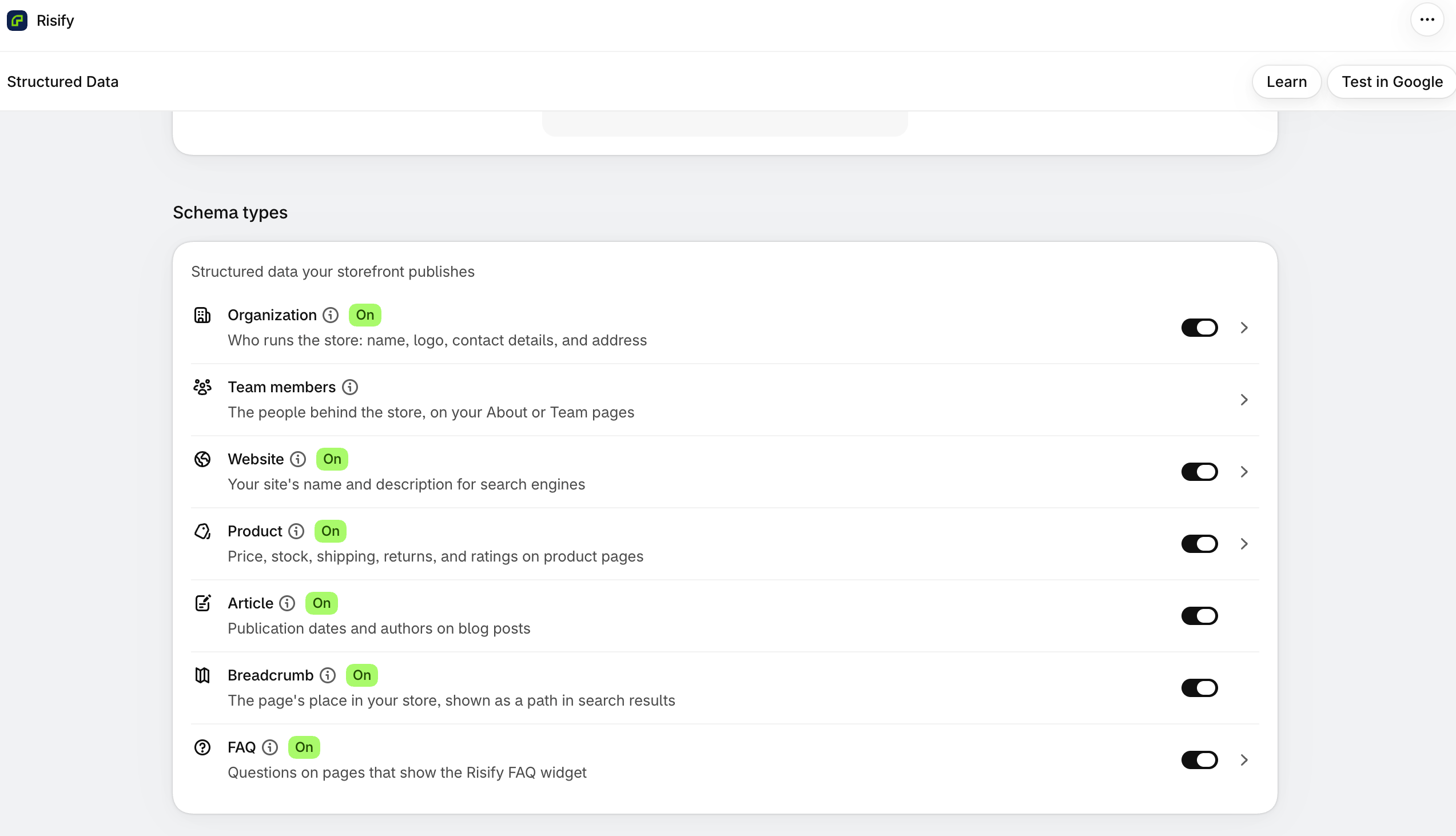
Structured Data has two parts:
- The Structured Data page in Risify , where you turn schema types on and off, set languages, and check the output.
- The Risify app embed in your theme , which publishes the JSON-LD on your storefront. The embed is turned on during installation; its status is shown in Settings under App embed, and on the Overview page.
Once a schema type is on, Risify builds its JSON-LD from your store data automatically: your Shopify store details for Organization and Website, product fields for Product, blog posts for Article, your Navigation paths for Breadcrumb, and your FAQs for FAQ. Nothing appears on your storefront until the app embed is on.
Note: The Organization schema can be filled in automatically from your store information when you first set up Risify AI. If you see "Already configured" on the Risify AI page, this has been done.
What Schema Types Can You Turn On?
Risify publishes seven schema types, each with its own switch and a short description of what it covers.
1) Organization
Who runs the store: your business name, logo, contact details and address. Search engines use it to show your business information, and AI tools use it to identify the company behind the store. Click the arrow next to the type to review or edit the details.
2) Team Members
People published for your organization, as Person structured data. Use it for the team on your About page and for blog authors. Linking real people to your content supports the experience, expertise, authoritativeness and trust signals that search engines and AI tools use to judge credibility. The switch shows how many members are published.
3) Website
Your site's name and description for search engines. It also enables the sitelinks search box in Google results, where eligible.
4) Product
Price, stock, shipping, returns and ratings on product pages. This is what makes product rich results possible in Google, and it is the main structured data AI tools read when they compare products.
5) Article
Publication dates and authors on blog posts. Google uses it to show article metadata in results, and it pairs with Team Members to attribute content to real authors.
6) Breadcrumb
The page's place in your store, shown as a path (Home > Collection > Product) in search results. Risify builds it from the breadcrumb paths you set on the Navigation page. Learn more about Risify Breadcrumbs .
7) FAQ
Questions on pages that show the Risify FAQ section. Every page with the section gets FAQ structured data for its assigned questions. Learn more about Risify FAQs .
Languages
Below the schema types, the Languages section lets you set a default language and add additional languages . Fields marked with a globe icon can be translated, and visitors see their market's language, following your Shopify Markets setup.
Multi-language structured data is available on the Risify Plus plan. For plan details, see Risify Standard vs. Risify Plus .
How to Set Up Structured Data in Risify
Step 1: Turn On the Schema Types You Need
Open Structured Data in Risify. For most stores, we recommend turning on Organization, Website, Product, Breadcrumb and FAQ. Add Article if you publish blog posts and Team Members if you want to publish your team or authors.
Click the arrow next to Organization and Team Members to review the details Risify will publish. Product, Article, Breadcrumb and FAQ use your existing store data and need no extra input.
Step 2: Check the App Embed
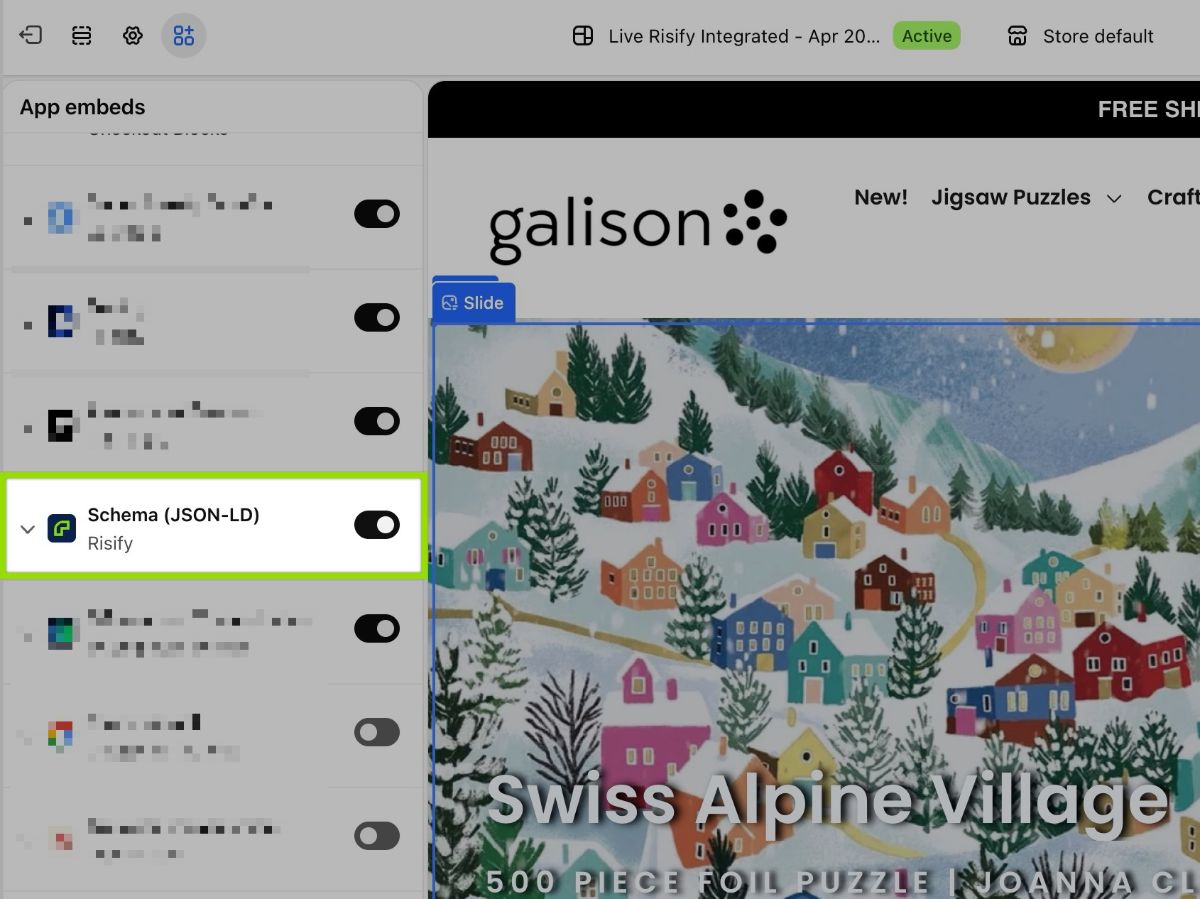
Go to your theme customizations and confirm that the Schema (JSON-LD) by Risify is activated.
Step 3: Verify the Output
Use the tools below to confirm the structured data is published and valid.
How to Verify Your Structured Data
Option 1) Debug Mode
Turn on Debug mode at the bottom of the Structured Data page. A JSON-LD panel appears on your storefront showing every schema Risify publishes on the page you are viewing. Expand each type to check that the fields are populated correctly, and copy the code if you want to test it elsewhere.
Debug mode is for testing only. The panel is visible to anyone on your store while it is on, so turn it on during setup or troubleshooting and off again afterwards. Your structured data keeps working either way; the toggle only controls the panel.
Option 2) Test in Google
Click Test in Google at the top of the Structured Data page to open Google's testing tool for your store. It shows which schema types Google detects on a page, whether they are valid, and any errors or warnings. If a type you turned on does not appear, check the app embed and Debug mode first.
Option 3) The AI & Search Audit
Every AI & Search Audit counts the schema errors across your store and shows them in the audit summary. Run an audit after setup to confirm the count is zero, and watch it in later audits to catch structured data that breaks after a theme update or a product change.
Option 4) Google Search Console
Connect Search Console in Risify Settings to see your Google data in the AI & Search Visibility page. Search Console's own Enhancements section shows site-wide structured data validation and flags pages with errors over time.
Option 5) Contact Risify Support
If you are unsure whether everything is set up correctly, or Google reports errors you cannot resolve, contact Risify support . On the Plus plan, the Risify team handles structured data implementation for you.
What to Look For in Valid Structured Data
Valid structured data appears without errors in Debug mode and Google's tools. Warnings are common and do not always prevent rich results, but errors typically block Google from using the data. The most frequent causes are missing required fields, such as a product with no price, and incorrect formatting.
How Long Until Changes Appear in Search and AI Answers?
Google needs to recrawl your pages to detect new structured data, which usually takes a few days to a couple of weeks. Rich results take longer, since Google also evaluates whether your content qualifies; this can take several weeks to a few months, and Google currently shows FAQ rich results only for a small set of sites.
AI tools that browse the web can pick up your structured data as soon as your pages are recrawled. Use AI Visibility to see whether they name or cite your store over time.
FAQ: Frequently Asked Questions About Risify Schema
Here are the commonly asked questions about Risify schema feature: