When you open a product inside Risify, you get a single view of everything that affects how that product appears in search results.
SEO score, meta tags, image alt text, FAQs, breadcrumbs, search queries, and structured data are all accessible without leaving the page.
Here is what each section does.
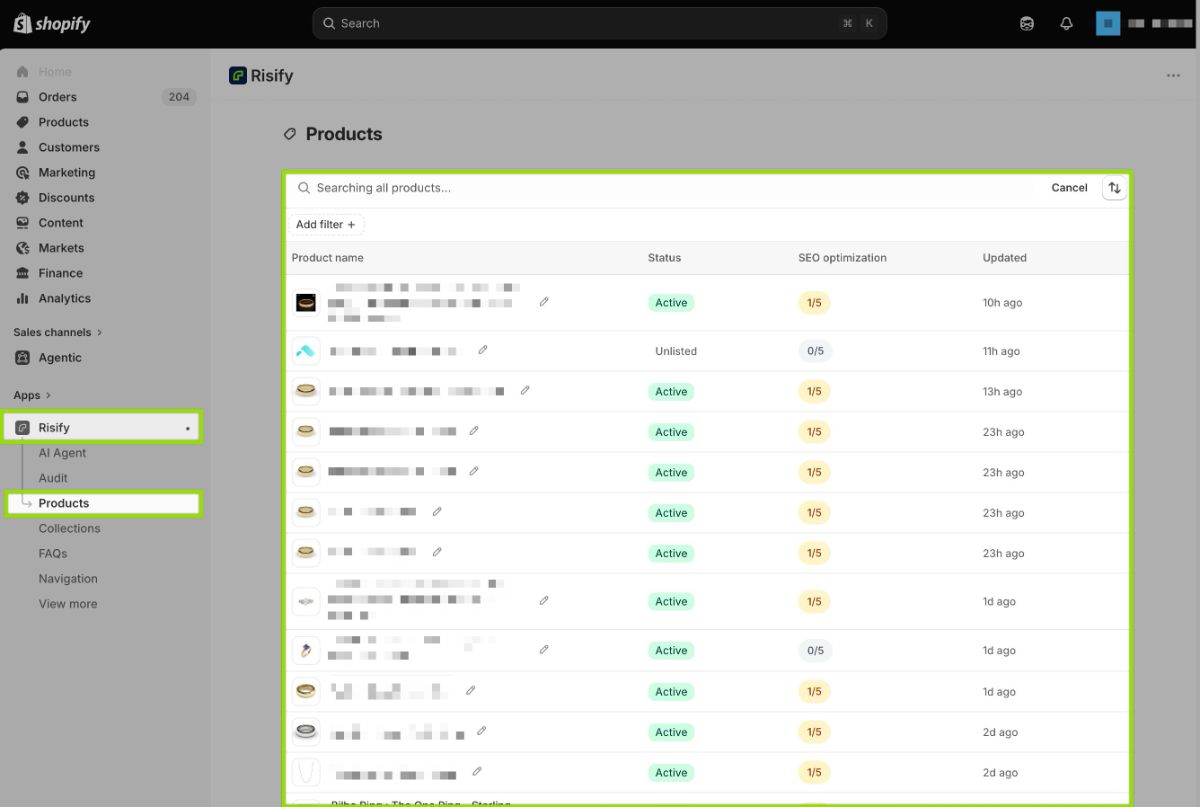
Editing Search Engine Listing
Click "Products" in the left sidebar to see your full product catalog. Each row shows the product's status, an SEO optimization summary, and when it was last updated.
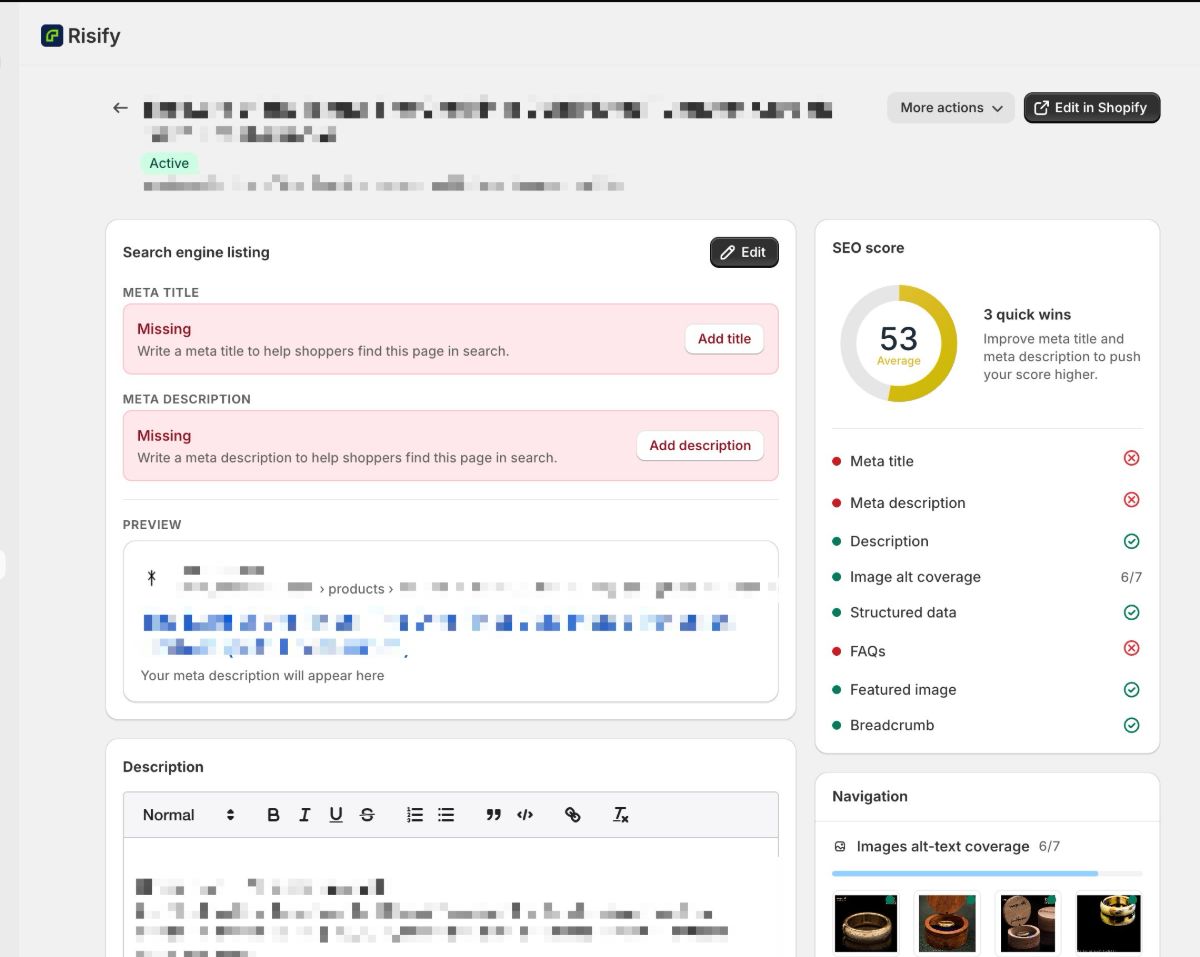
Select any product to open its dedicated page. The Search engine listing area at the top displays the meta title and meta description currently set for that product. A live preview underneath shows how the listing looks in Google.
Missing fields are flagged clearly. Click Add title or Add description to fill in the gaps right from this screen. As you type, the preview refreshes so you can check the result before saving. The meta description field includes a character counter and confirms when your text falls within the optimal range (145-160 characters).
Note: To update meta tags across many products at once, use the Meta Tags screen in Risify.
Reviewing Product Page SEO Score
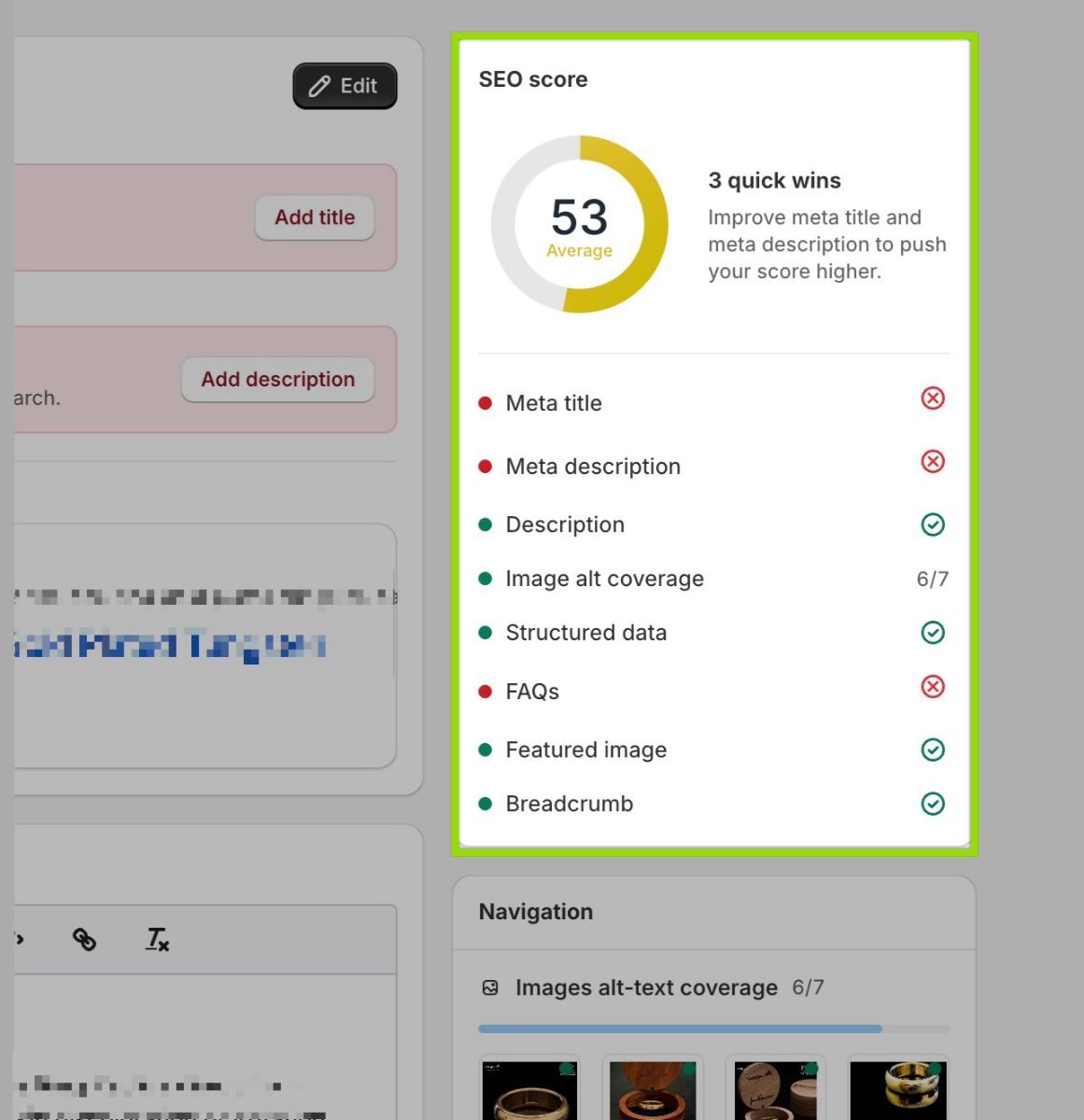
The right panel shows an SEO score between 0 and 100, calculated from the optimization status of key on-page elements. A checklist underneath breaks down exactly what counts toward the score:
- Meta title: Is a title set for this product?
- Meta description: Is a description present?
- Description: Whether a product description exists.
- Image alt coverage: Whether product images have alt text.
- Structured data: Is schema markup active?
- FAQs: Are any FAQs assigned to this product?
- Featured image: Does the product have a featured image?
- Breadcrumb: Is a breadcrumb path defined?
Green checkmarks and red X icons make it easy to scan the list and spot gaps.
Quick Wins
Next to the score, the quick wins recommend the specific fixes that would raise your score the fastest. If your meta title is missing and your images lack alt text, those appear as the top suggestions.
Think of it as a shortcut. You do not need to work through the checklist top to bottom. The quick wins tell you where your effort will count most.
Writing Your Product Description
The Description editor is where you write or revise the text that appears on the product page in your storefront. The toolbar supports bold, italic, underline, strikethrough, lists, blockquotes, code blocks, links, and text alignment.
Click Save when you are done editing.
Navigation
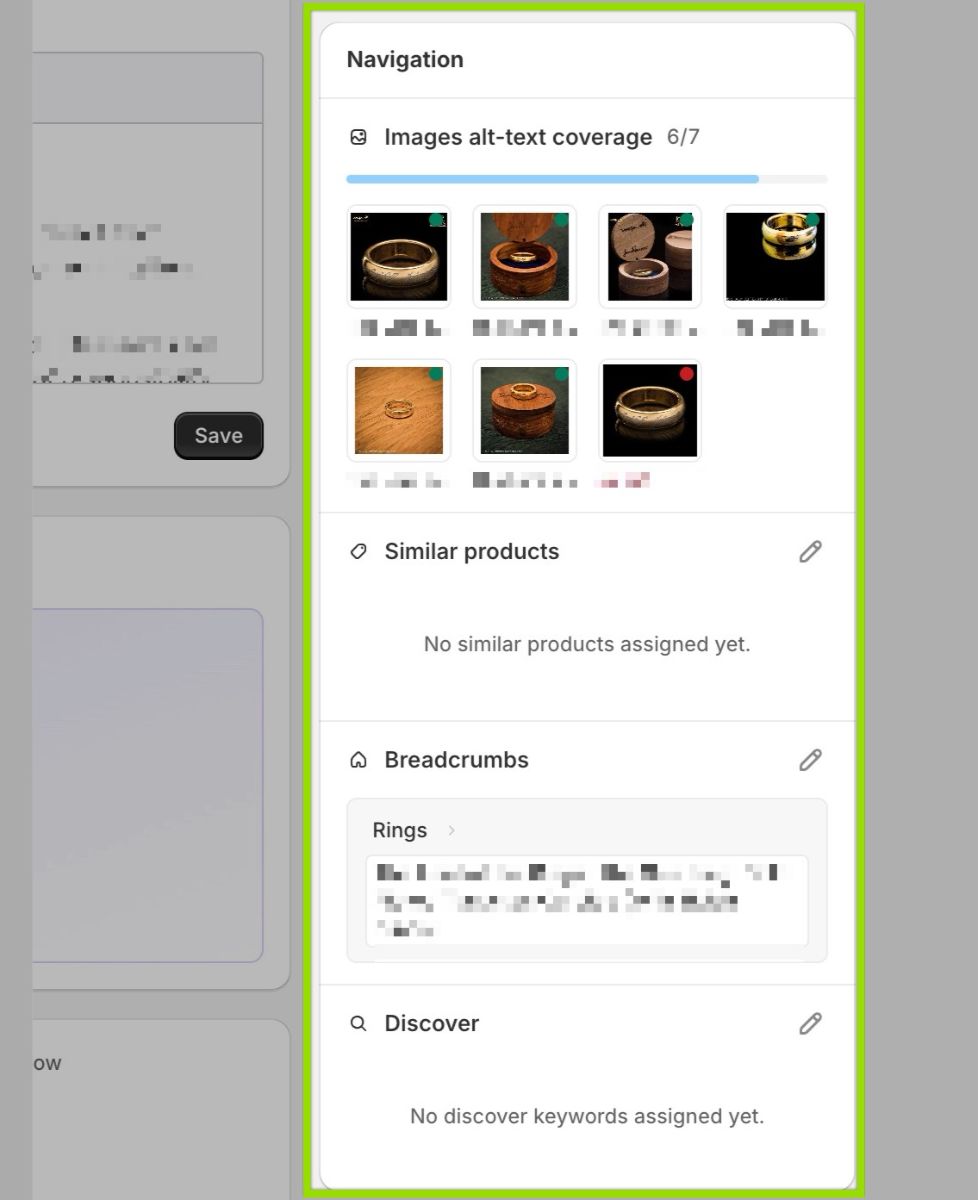
The right panel groups several features related to how this product connects to the rest of your store and how its images are managed.
Images Alt-Text Coverage
This section thumbnails every image attached to the product and labels each one with its alt text status. Images missing alt text show a red "No alt" tag.
Alt text serves two purposes: it helps search engines understand image content, and it provides descriptions for visitors using screen readers. Since image alt coverage is part of the SEO score, this section gives you a clear count of how many images still need attention.
Similar Products
Displays whether related products have been linked to this page. When configured, Similar adds a row of product suggestions that shoppers can browse without searching.
If nothing is assigned, click the pen icon to set it up.
Breadcrumbs
Shows the breadcrumb trail for this product, for example: "Rings > Coloured Gem Rings > Our Ring for Cate, Sterling Silver." A complete breadcrumb path tells search engines how the product fits into your catalog hierarchy.
Click the pen icon to edit, or visit the Navigation tab for bulk setup. The full Breadcrumb setup guide covers configuration in detail.
Discover
Indicates whether Discover (Related Search) items are assigned. Discover places clickable keyword suggestions on the page that link to related collections or products.
Click the pen icon to add items, or follow the Discover setup guide .
Customization
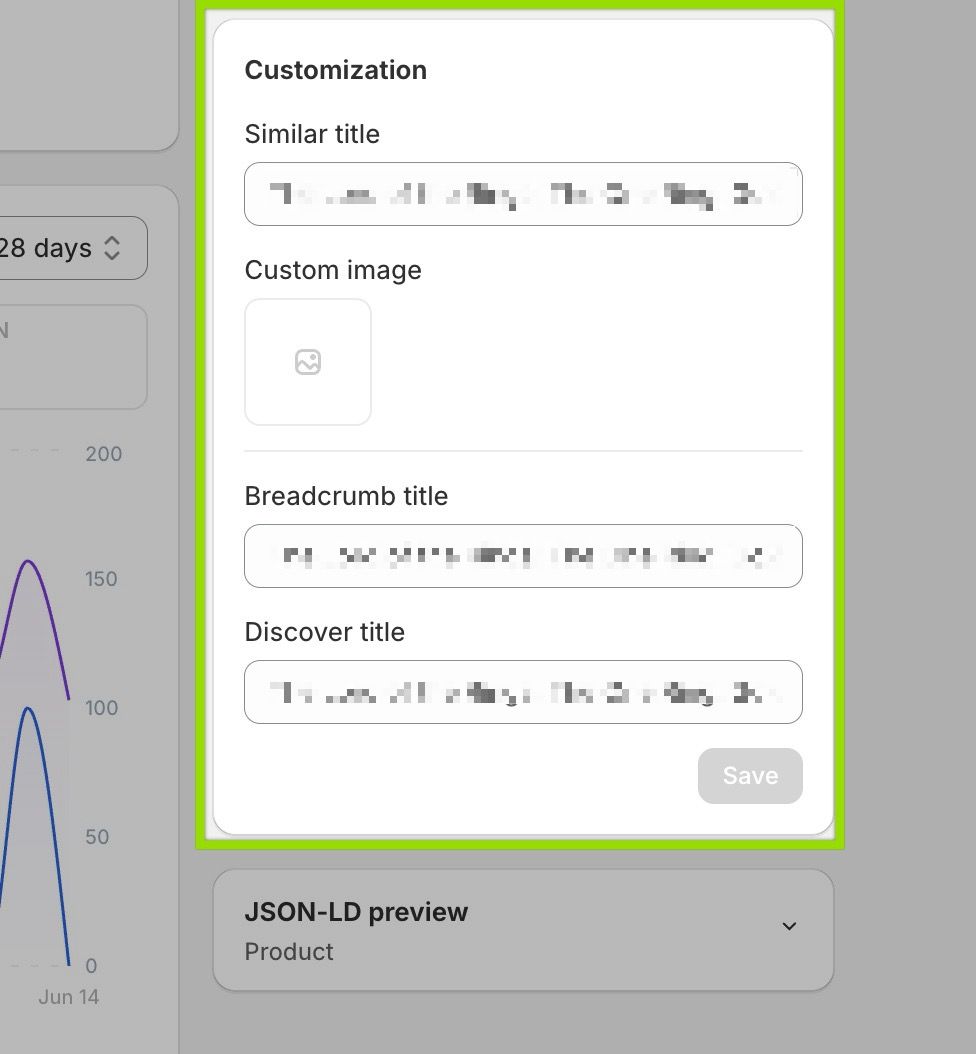
These fields let you control how the product appears when it shows up inside Risify's navigation features on other pages:
- Similar title: Overrides the product name in Similar product rows. Defaults to the original title if left blank.
- Custom image: Replaces the product's default image in navigation tiles like Similar and Discover.
- Breadcrumb title: Sets a custom label for this product in breadcrumb trails. Helpful when you want a shorter name than the full product title.
- Discover title: Overrides the name shown in Discover rows on other pages.
Click Save to apply. These settings only change how the product appears within Risify's navigation. The product's actual title in Shopify stays the same.
Adding FAQs to Your Product
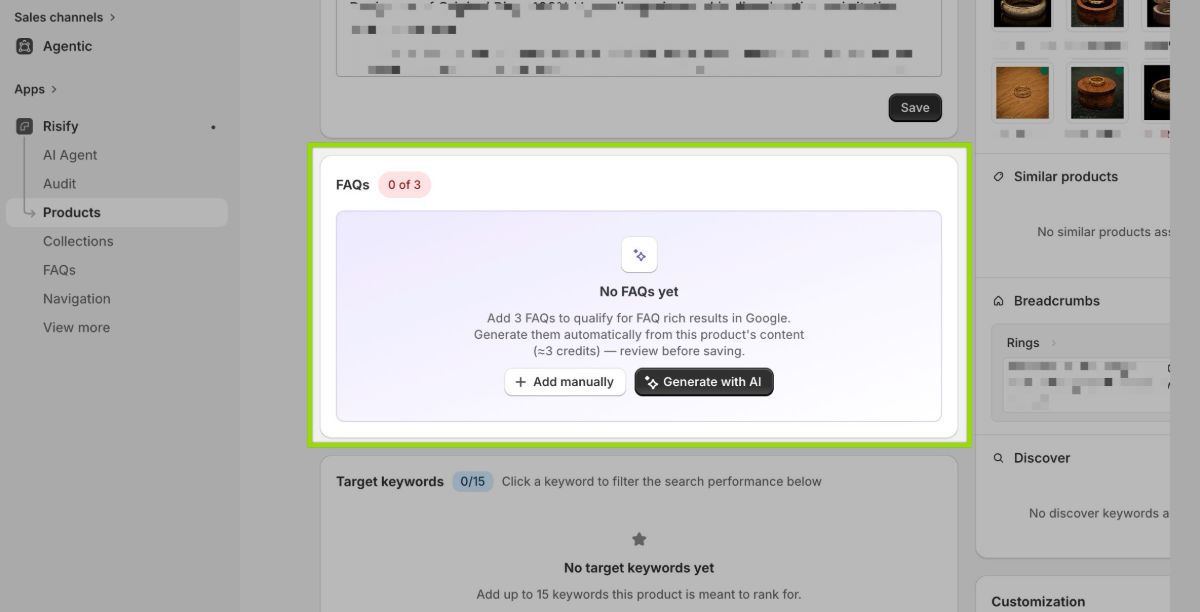
Risify recommends at least 3 FAQs per product to qualify for FAQ rich results in Google. The section header tracks your progress (e.g., 0 of 3).
Two options are available when no FAQs exist yet:
- Add manually: Write your own questions and answers.
- Generate with AI: You can let Risify's brand-aware agentic AI create FAQs based on your product information.
Once added, FAQs appear in a list with their question, a preview of the answer, and an edit button for quick changes.
Note: The FAQ setup guide covers the full process of creating, assigning, and displaying FAQs across your store.
Target Keywords
You can assign up to 15 keywords that represent what this product should rank for. These act as a focus list tied to this specific product, separate from Risify's store-wide Keyword Tracking feature.
Once assigned, you can click any keyword to filter the search performance data below and see how the product performs for that term.
Google Search Console Data
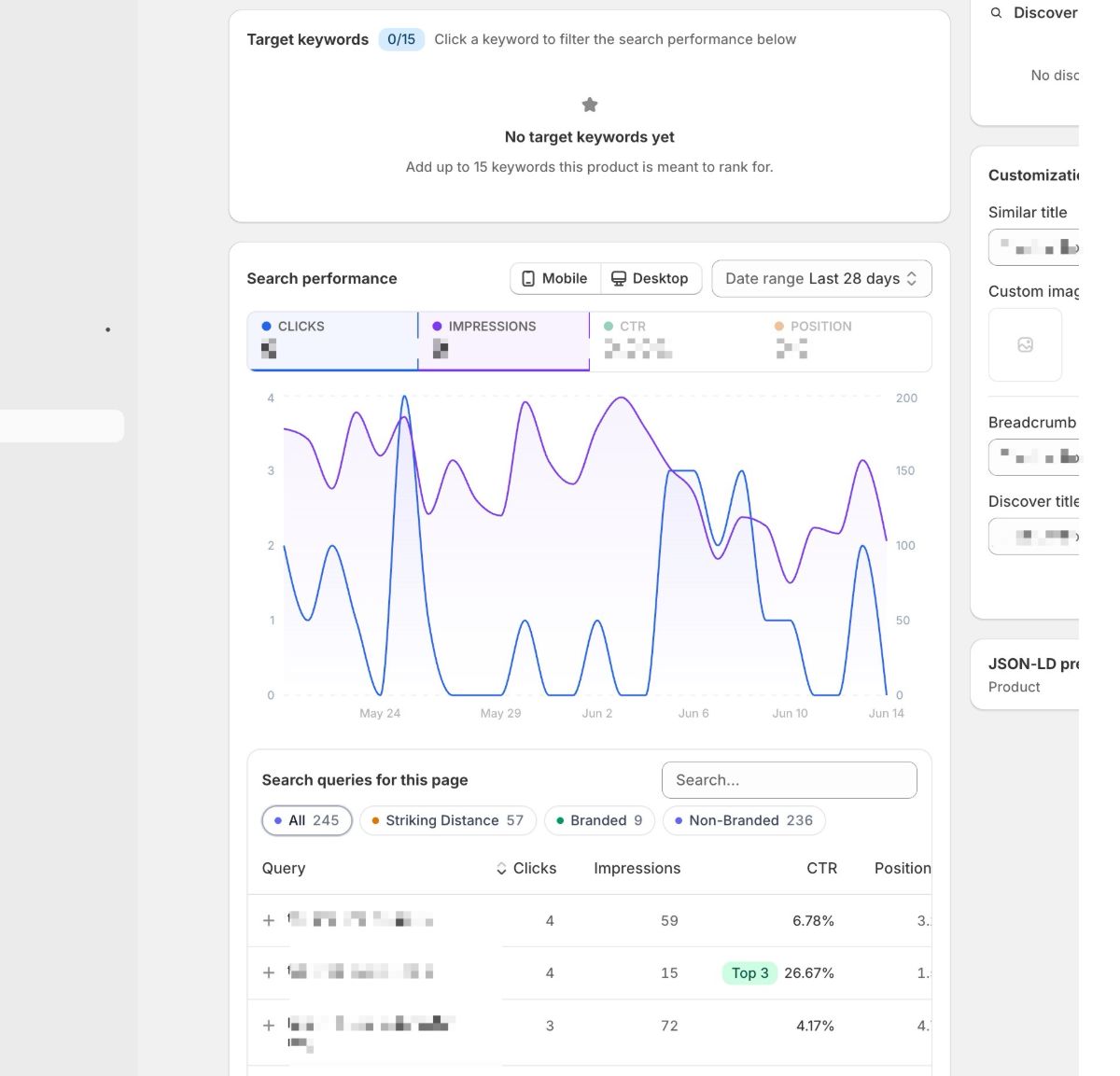
If your Google Search Console account is connected, this section pulls in performance metrics specific to this product's URL:
- Clicks: Total visits from Google search.
- Impressions: How often the product appeared in results.
- CTR: The ratio of clicks to impressions.
- Position: Average ranking across all matched queries.
Switch between Mobile and Desktop views, and adjust the Date range to analyze different time periods. The chart plots clicks and impressions over time so you can see whether recent changes had an effect.
Search Queries
The table below the chart lists every search term that triggered this product in Google. Columns include clicks, impressions, CTR, and average position. Queries ranking in positions 1-3 are marked with a Top 3 badge.
Four filters help you segment the data:
- All: The complete query list.
- Striking Distance: Terms ranking just outside page one, where small optimizations could make a difference.
- Branded: Queries containing your brand name.
- Non-Branded: Generic terms that show how the product ranks without brand recognition.
This breakdown helps you decide where to invest effort, whether that means improving descriptions for non-branded terms, doubling down on queries already close to page one, or investigating why branded traffic is low.
JSON-LD Preview
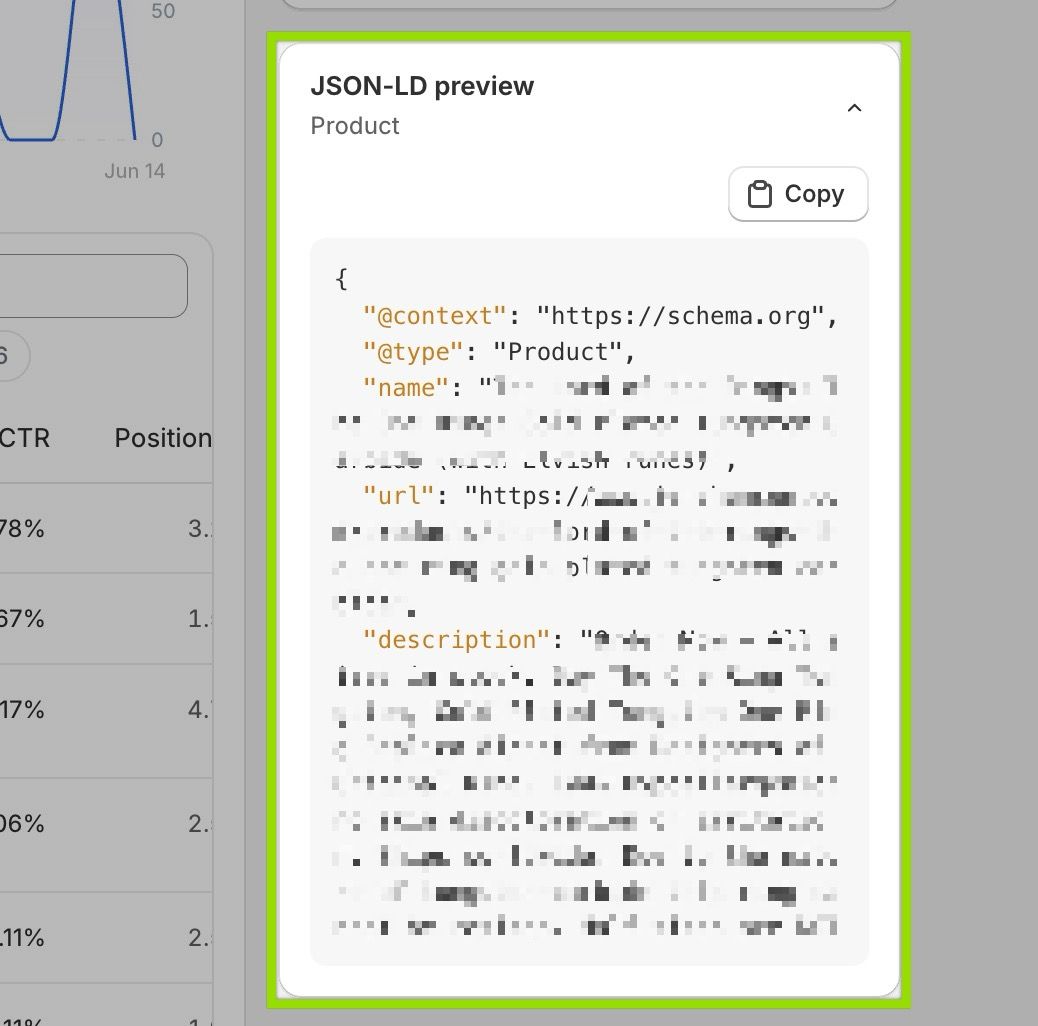
At the bottom of the right panel, expandable JSON-LD preview blocks show the structured data Risify generates for this product. Each block lists the schema type (e.g., Product) and its contents.
Expanding a block lets you verify that pricing, availability, reviews, and other product attributes are correctly included in the markup. This saves you from needing to inspect page source code or run external schema testing tools.
Summary
The Risify product page puts every SEO lever for a single product in one place. You can review and fix your search listing, close gaps flagged by the SEO score, check image alt coverage, assign FAQs for rich results, set target keywords, analyze real search data from Google Search Console, manage navigation settings, and inspect your structured data markup.
When something needs a deeper setup, each section links to the relevant guide so you can go further without losing context.