The Navigation tab in Risify brings three features together under one tab: Breadcrumbs, Similar, and Discover. Each feature improves a different part of how customers move through your store and how search engines understand your site structure.
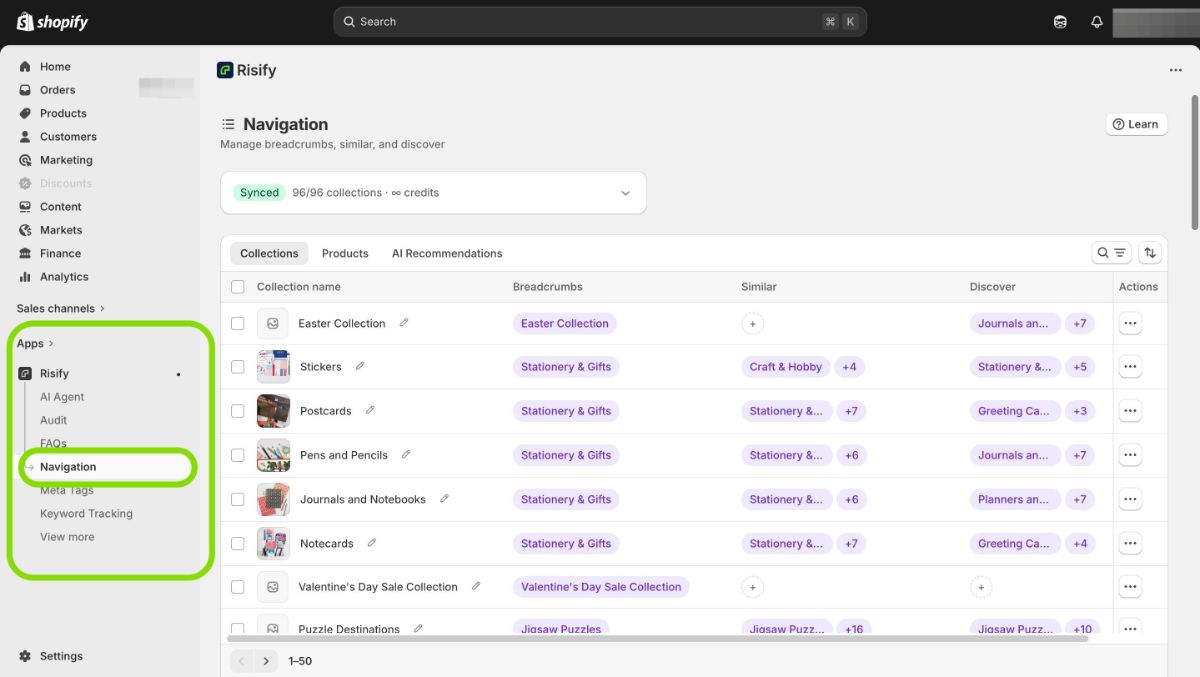
You can access all three by going to Apps, opening Risify, and clicking Navigation from the left-hand menu. From here, you manage everything in one place.
What the Navigation Tab Includes
When you open the Navigation tab, you will see your Collections and Products listed with columns showing the status of each feature. This gives you a quick overview of which pages have Breadcrumbs, Similar menus, or Discover suggestions already configured.
Breadcrumbs
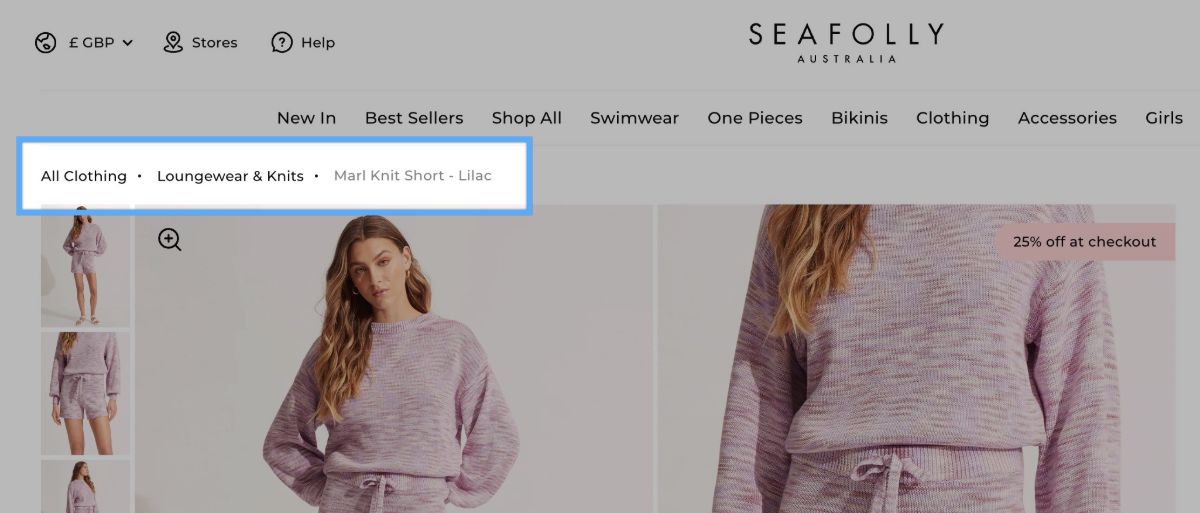
Breadcrumbs show a visitor’s location within your store hierarchy. Shopify’s default breadcrumb system has limitations, it only displays breadcrumbs when a user arrives through a collection URL, and search engines often cannot read the markup properly.
Risify Breadcrumbs solve this by letting you define consistent breadcrumb paths for both collection and product pages, regardless of how the visitor reaches them. This improves navigation for your customers and helps Google correctly understand your site structure.
For full setup instructions, see the Risify Breadcrumbs guide.
Similar
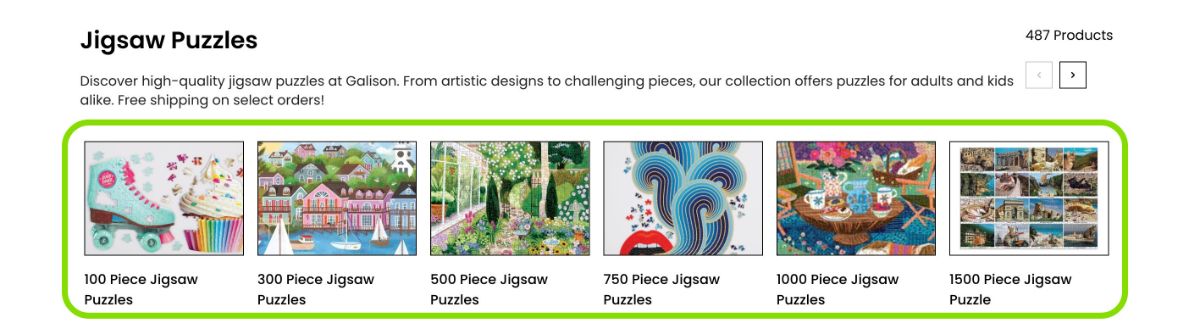
The Similar feature adds a visual navigation bar to your collection pages, showing links to other collections that belong to the same category. For example, if a customer is viewing “Corner Sofas,” they can quickly switch to “Two-Seater Sofas” or “Sofa Beds” without going back to a parent page.
This improves user experience by giving shoppers more browsing paths and strengthens SEO through internal linking between related collections.
For full setup instructions, see the Risify Similar guide.
Discover
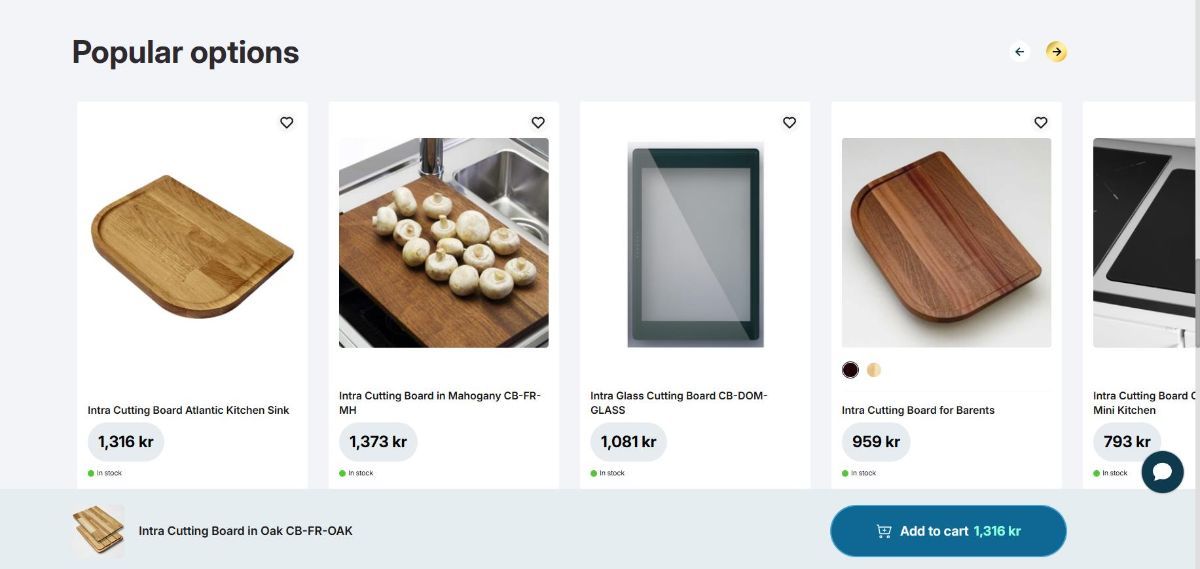
The Discover feature adds a suggestion row to your collection pages. It displays short, clickable items that link to other collections or products you select. Shoppers can jump to related topics, accessories, or alternatives without typing a search query.
Suggestions are defined per collection, so each page can guide customers to the most relevant next steps. This helps with cross-selling, reduces bounce rates, and strengthens internal linking for SEO.
For full setup instructions, see the Risify Discover guide.
How These Features Work Together
Each of the three features targets a different navigation need:
- Breadcrumbs tell visitors where they are within your store hierarchy and help search engines understand your page structure.
- Similar helps visitors browse between related collections within the same category.
- Discover guides visitors toward related products or collections they might not have found on their own.
Used together, they create a clear, well-connected browsing experience that keeps customers engaged and gives search engines a strong internal linking structure.
Shared Setup Pattern
All three features follow the same two-phase setup:
- Phase 1 (Admin): Configure the feature inside Risify’s admin panel under the Navigation tab. This is where you define paths, assign related collections, or attach suggestions.
- Phase 2 (Theme): Add the corresponding Risify section to your Shopify theme through the Theme Editor. This makes the feature visible on your storefront and lets you customize its appearance.
Each feature has its own dedicated guide with step-by-step instructions for both phases.
Summary
The Navigation tab in Risify is your central hub for managing Breadcrumbs, Similar, and Discover.
All three features are configured from the same screen, follow the same two-phase setup, and work together to improve both customer navigation and SEO performance. Visit each feature’s dedicated guide for detailed setup instructions.