Risify installs like any other Shopify app. You do not need any coding knowledge, developer access, or technical background. Everything runs inside your Shopify admin using native Shopify systems like app blocks, metafields, and theme sections.
This guide covers the full installation process and what to expect when you first open the app.
Installation Steps
Step 1: Add Risify From the Shopify App Store
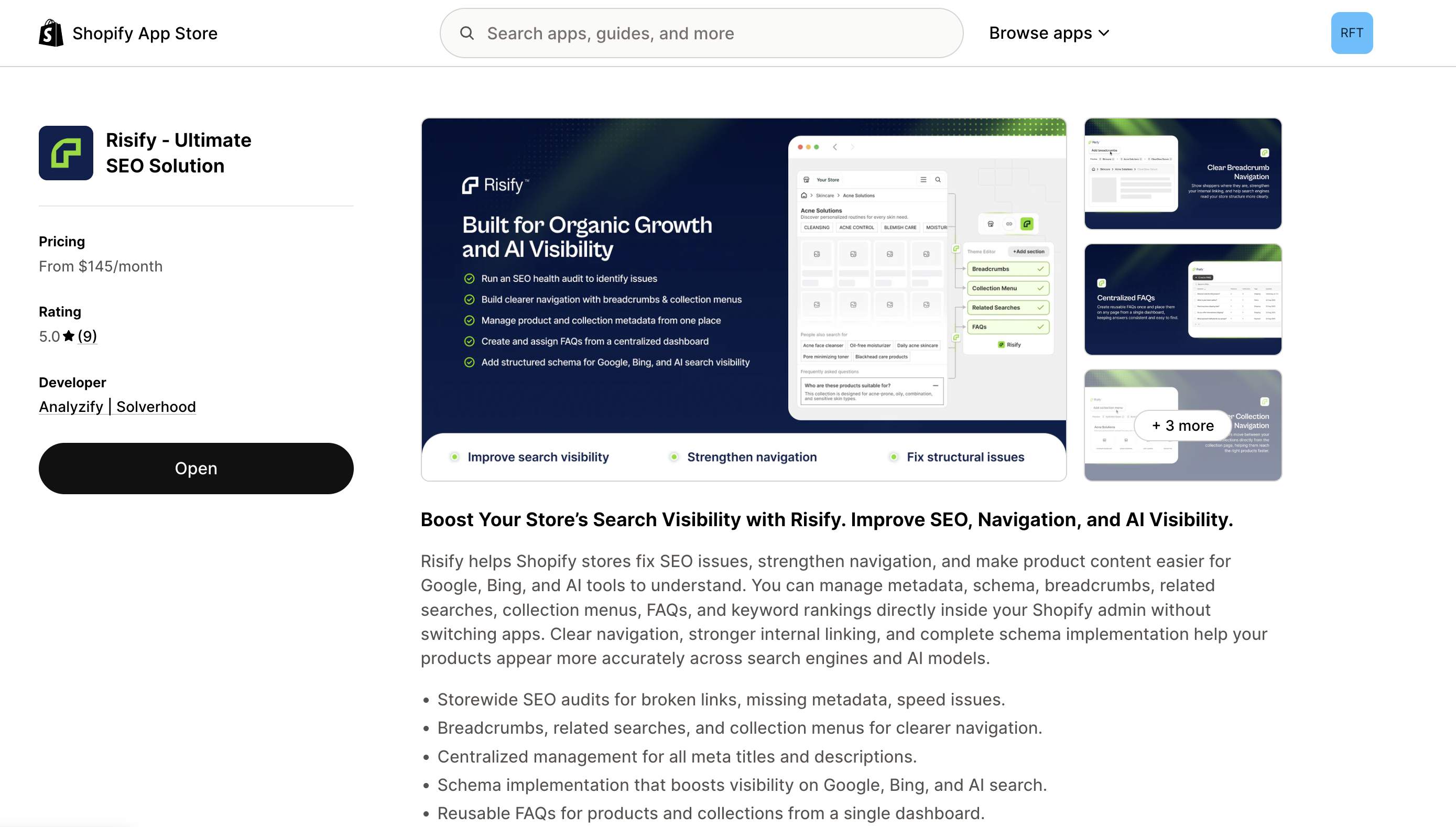
Go to the Shopify App Store and search for Risify , or visit the Risify listing directly. Click Add App, then review and approve the permissions Shopify asks for. These permissions allow Risify to access your store’s pages, products, collections, and theme data so it can manage schema, meta tags, breadcrumbs, and other features.
Step 2: Open Risify in Your Shopify Admin
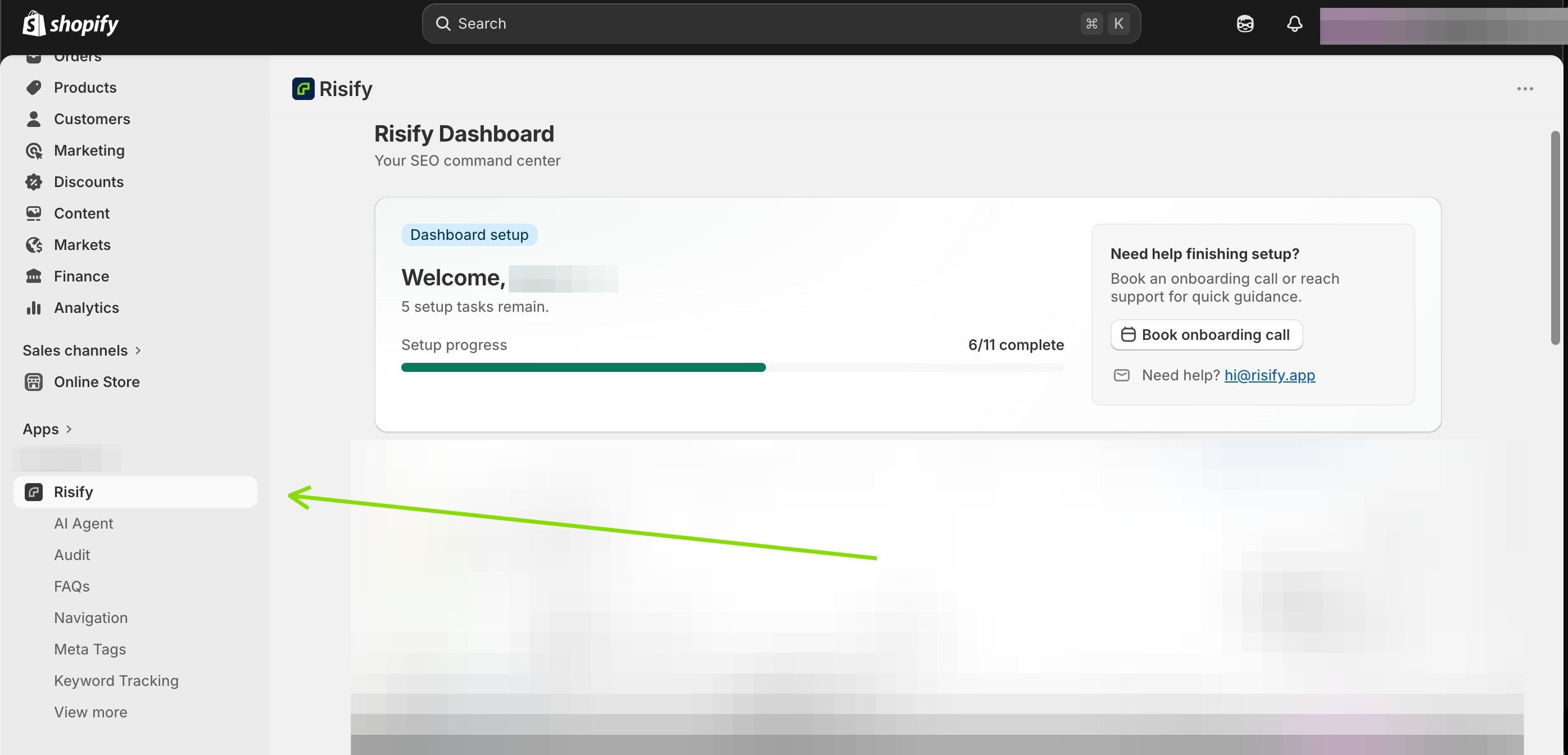
After installation, go to Apps in your Shopify admin sidebar and click Risify. The app opens directly inside your Shopify admin, there is no separate dashboard or external login.
Step 3: Choose Your Plan
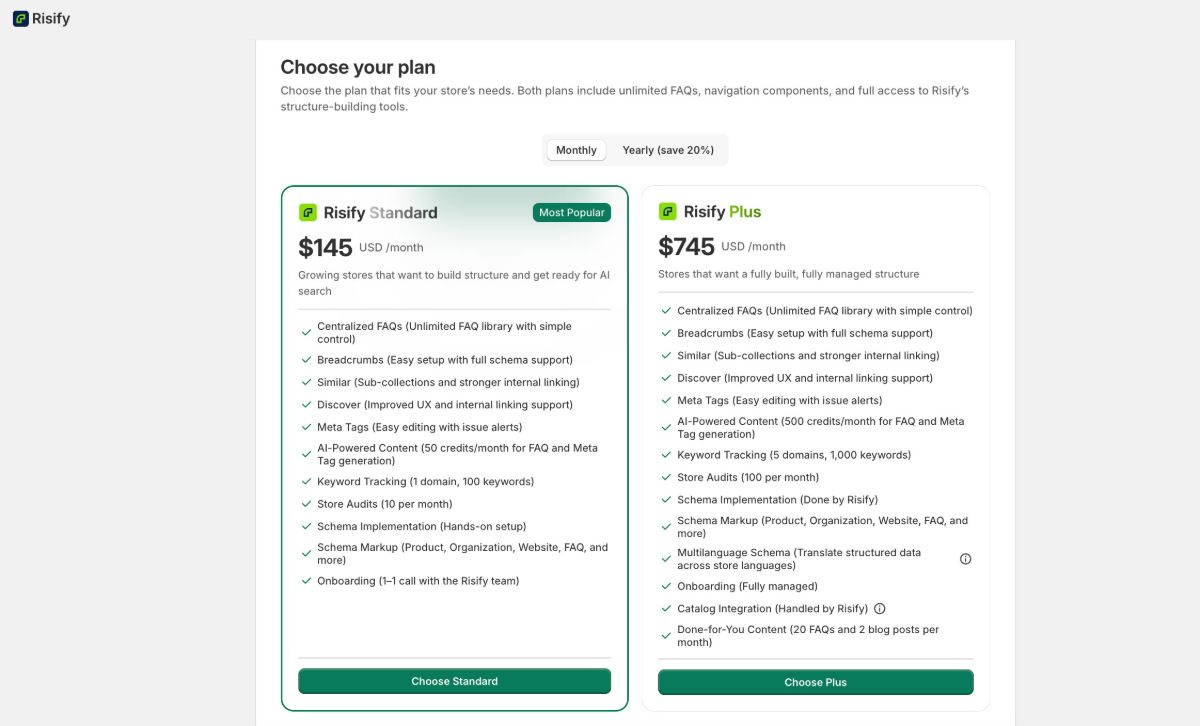
You will be asked to select a plan. Risify offers two options: Risify Standard and Risify Plus. Both include all core features.
The main differences are in keyword limits, audit frequency, AI credits, and whether the Risify team handles setup for you. You can start with Standard and upgrade later if needed.
Step 4: Start Your Setup
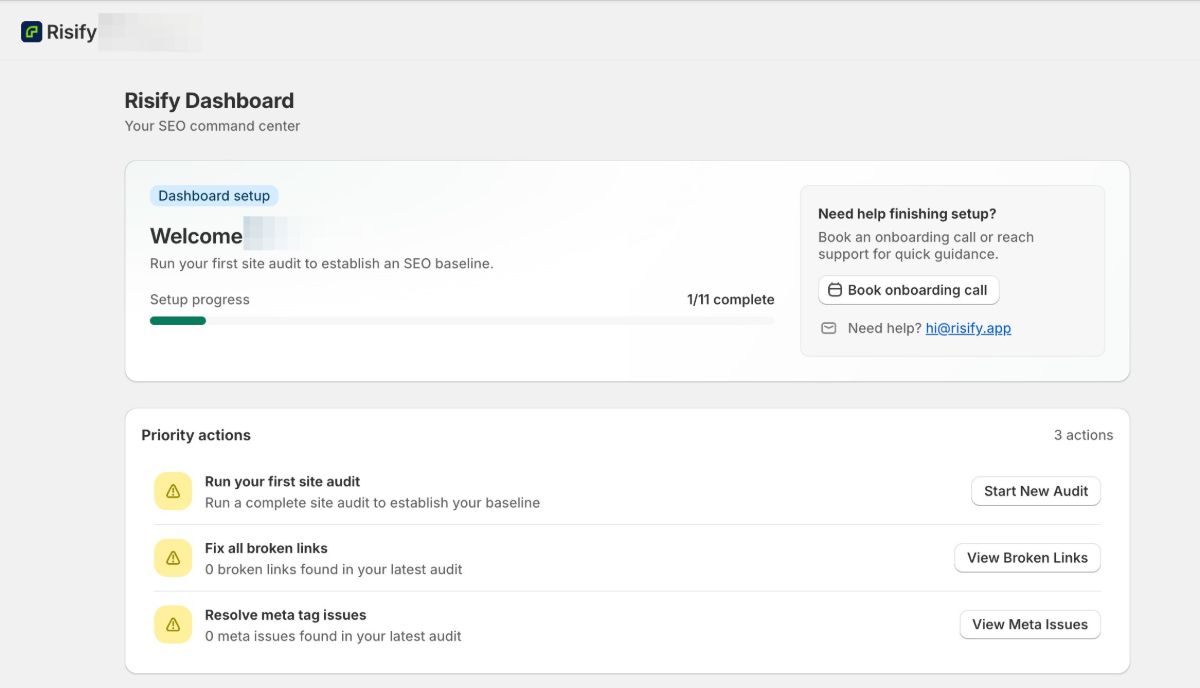
Once your plan is active, you can start configuring your setup. Here is the ideal setup order: Schema first, then Audit, Navigation, FAQs, and Keyword Tracking.
🔗 For an easier start, you can check Your First Steps with Risify: Quick Start Guide .
Do I Need Technical Knowledge?
No. Risify is built for Shopify merchants, not developers. Here is what you should know:
- No code editing required. Everything is managed through Risify’s interface inside your Shopify admin and through Shopify’s Theme Editor. You never need to touch code files.
- App blocks, not code injections. Risify uses Shopify’s Online Store 2.0 app blocks. You add Risify sections (like Breadcrumbs, FAQ, Similar, Discover) to your theme the same way you add any other section, through the drag-and-drop Theme Editor.
- Schema is handled automatically. Once you configure your schema settings and add the Schema block to your theme, Risify generates the correct JSON-LD code on every page. You do not write or edit any code.
- Metafields are managed by Risify. Features like FAQs store data in Shopify metafields. Risify creates and manages these for you. Your data stays safe in Shopify even if you uninstall the app.
If you are on the Risify Plus plan, the Risify team handles the full implementation for you. But even on the Standard plan, the setup is designed for merchants to do themselves without technical help.
Works With Any Modern Shopify Theme
Risify uses Online Store 2.0 app blocks and theme extensions, which means it works with any modern Shopify theme. You add Risify components to your theme through the Theme Editor, just like adding any other app block. There is no theme-specific configuration required.
Conclusion: Installing Risify App to Your Shopify Store
Installing Risify takes a few clicks from the Shopify App Store. No coding, no developer, no external tools. Everything runs natively inside Shopify using app blocks and metafields. Once installed, follow the Quick Start Guide to begin setting up your store’s SEO and AI visibility foundation.