The Collections is where you can manage everything related to a single collection's SEO, content, navigation, and performance.
Instead of switching between different sections, you can view and edit all the key elements from one screen.
This guide walks through each section of the collection page and explains what it does.
Search Engine Listing
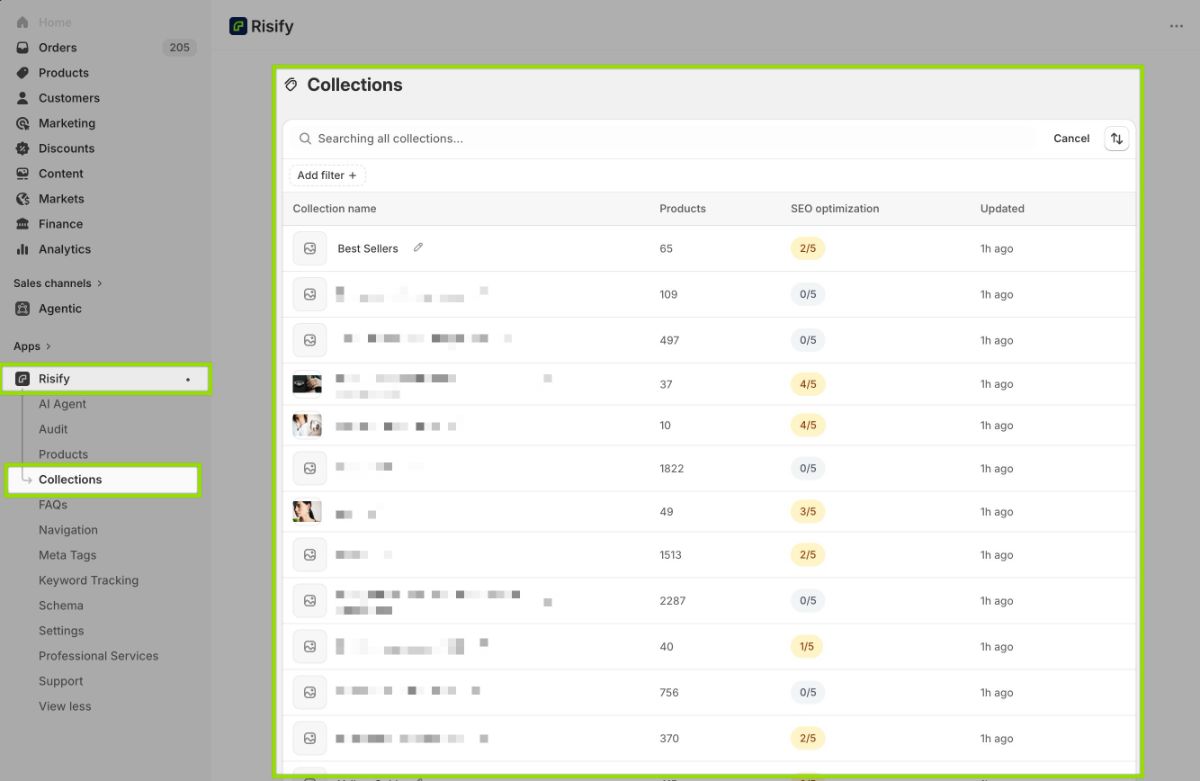
When you click “Collections” on the left, you will see all the collections in your Shopify store. Each includes how many products are assigned, a short SEO optimization checklist, and the last update time.
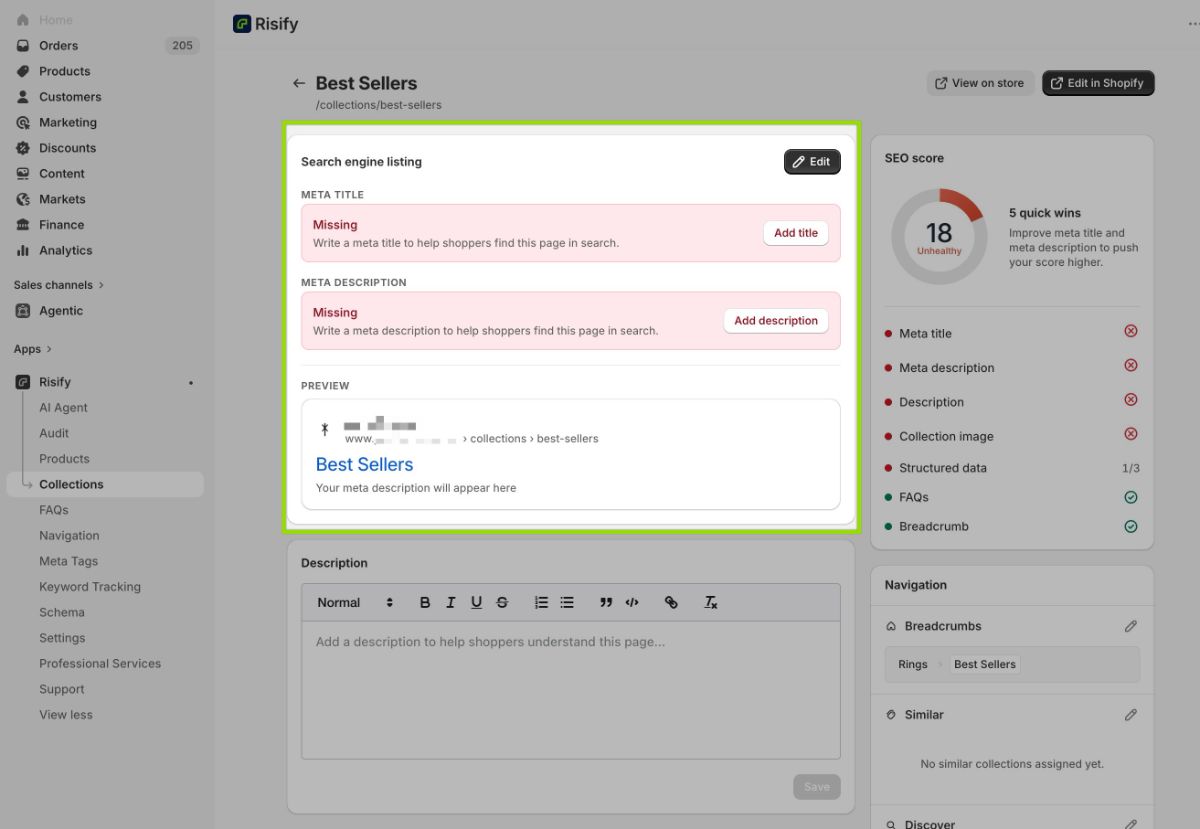
Once you click a certain collection, at the top of the page, you will find the Search engine listing section. This shows the current meta title and meta description for the collection, along with a live preview of how the page appears in search results.
If either field is missing, Risify flags it with a "Missing" label so you know what needs attention. You can click Add title or Add description to fill them in directly from this page.
The preview updates as you type, so you can see exactly how the listing will look in Google before saving.
Note: If you need to edit meta tags for multiple collections at once, you can use use the Meta Tags section in Risify instead of editing them one by one.
SEO Score
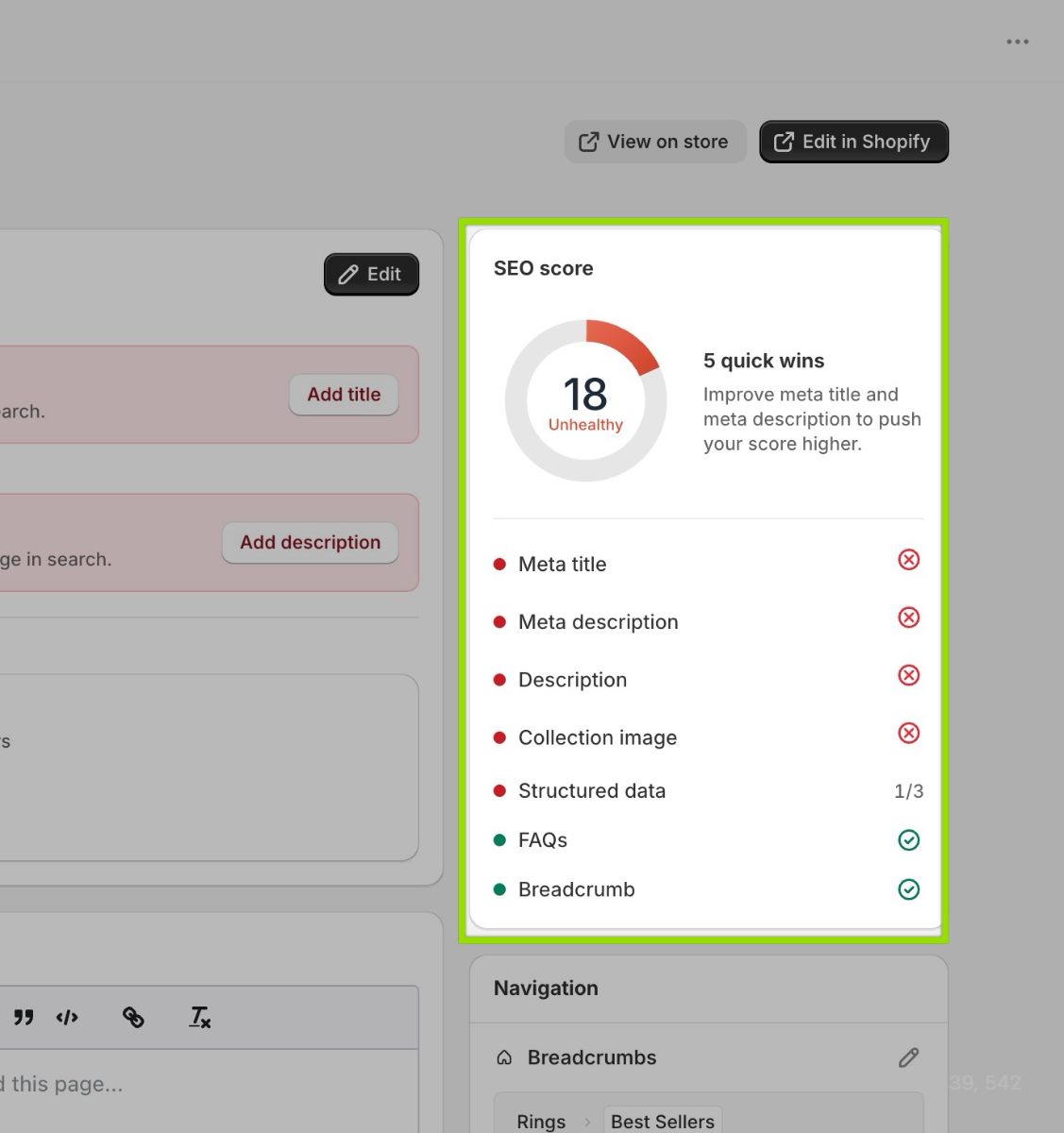
On the right side of the collection page, Risify displays an SEO score from 0 to 100. This score reflects how well the collection page is optimized based on several key elements.
The checklist below the score shows the status of each element:
- Meta title: Whether the collection has a meta title set.
- Meta description: Whether a meta description exists.
- Description: Whether the collection body description is filled in.
- Collection image: Whether an image is assigned to the collection.
- Structured data: Whether schema markup is active on the page.
- FAQs: If any FAQs are assigned.
- Breadcrumbs: Whether a breadcrumb path is configured for this collection.
Each item shows a checkmark or an X so you can see at a glance what is complete and what still needs work.
Quick Wins
Below the score, Risify highlights quick wins , specific actions that would have the biggest impact on your score. For example, if your meta title and description are missing, the quick wins section will suggest improving those first.
This helps you prioritize. Instead of guessing where to start, you can focus on the changes that will move your score the most.
Description
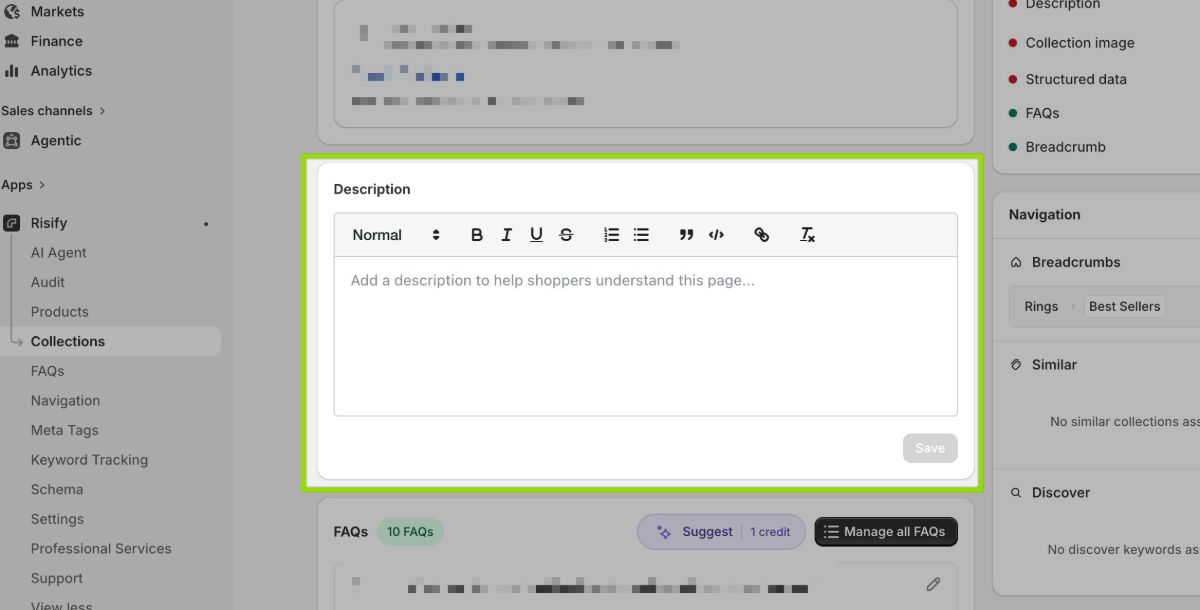
The Description section provides a rich text editor where you can write or update the collection's body description. This is the same description that appears on your storefront's collection page.
A well-written collection description helps both shoppers and search engines understand what the collection contains and why it exists. It also contributes to your SEO score.
Navigation
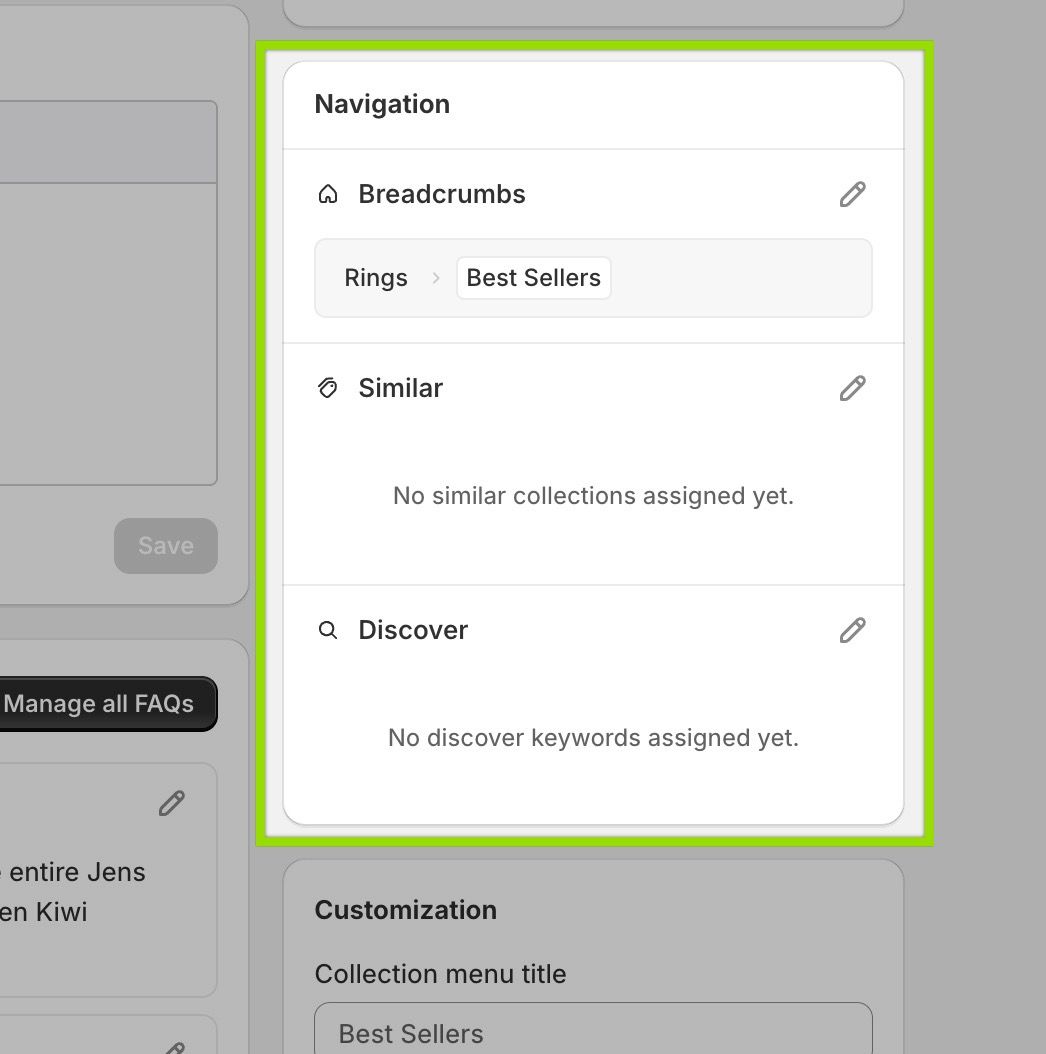
The Navigation panel on the right side of the collection page shows three features that control how this collection connects to the rest of your store.
Breadcrumbs
This shows the current breadcrumb path assigned to the collection. For example, a "Best Sellers" collection might display a path like "Rings > Best Sellers." Breadcrumbs help both shoppers and search engines understand where this collection sits in your store's hierarchy.
If no breadcrumb is configured, you can set one up by clicking the pen icon there or the Navigation tab . You can follow the Breadcrumb setup guide .
Similar
This shows whether a Similar (Collection Menu) has been assigned to this collection. Similar adds a suggestion row of related collections to the page, helping shoppers navigate between related categories.
If no Similar collections are assigned yet, the section will display a message letting you know. To configure it, visit the Similar setup guide and click the pen icon there.
Discover
This shows whether Discover (Related Search) keywords have been assigned to this collection. Discover displays clickable suggestions that link to related collections or products.
If no Discover items are assigned, you can set them up through the Discover setup guide and click the pen icon there.
Customization
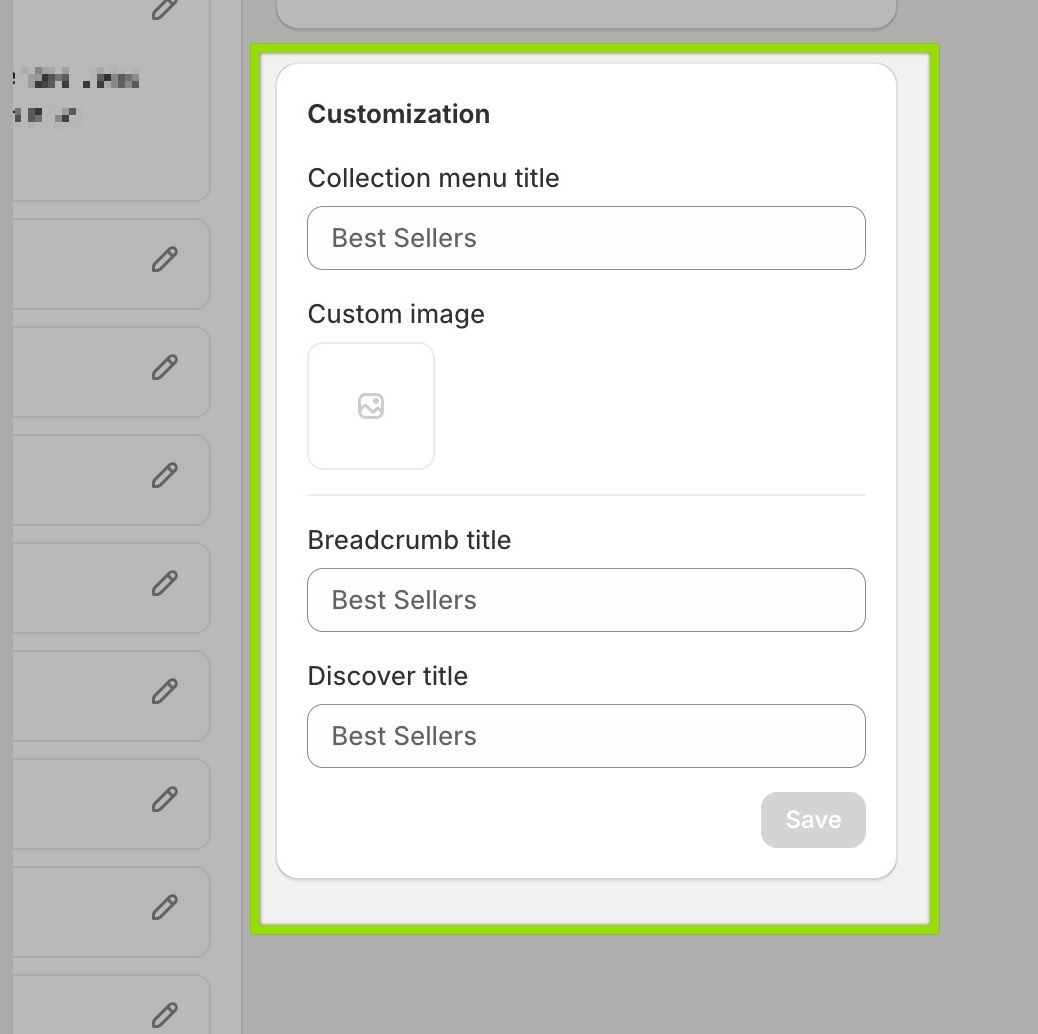
The Customization panel lets you override default display values for this specific collection. The available fields are:
- Collection menu title: The title used when this collection appears in Similar (Collection Menu) rows on other pages. If left empty, the collection's default title is used.
- Custom image: An image override for how this collection appears in navigation.
- Breadcrumb title: The label used for this collection in breadcrumb paths. Useful if you want a shorter or different name in the breadcrumb trail.
- Discover title: The title shown when this collection appears in Discover (Related Search) rows on other pages.
Click Save after making changes. These overrides only affect how the collection is displayed within Risify's navigation features. They do not change the collection's main title in Shopify.
FAQs
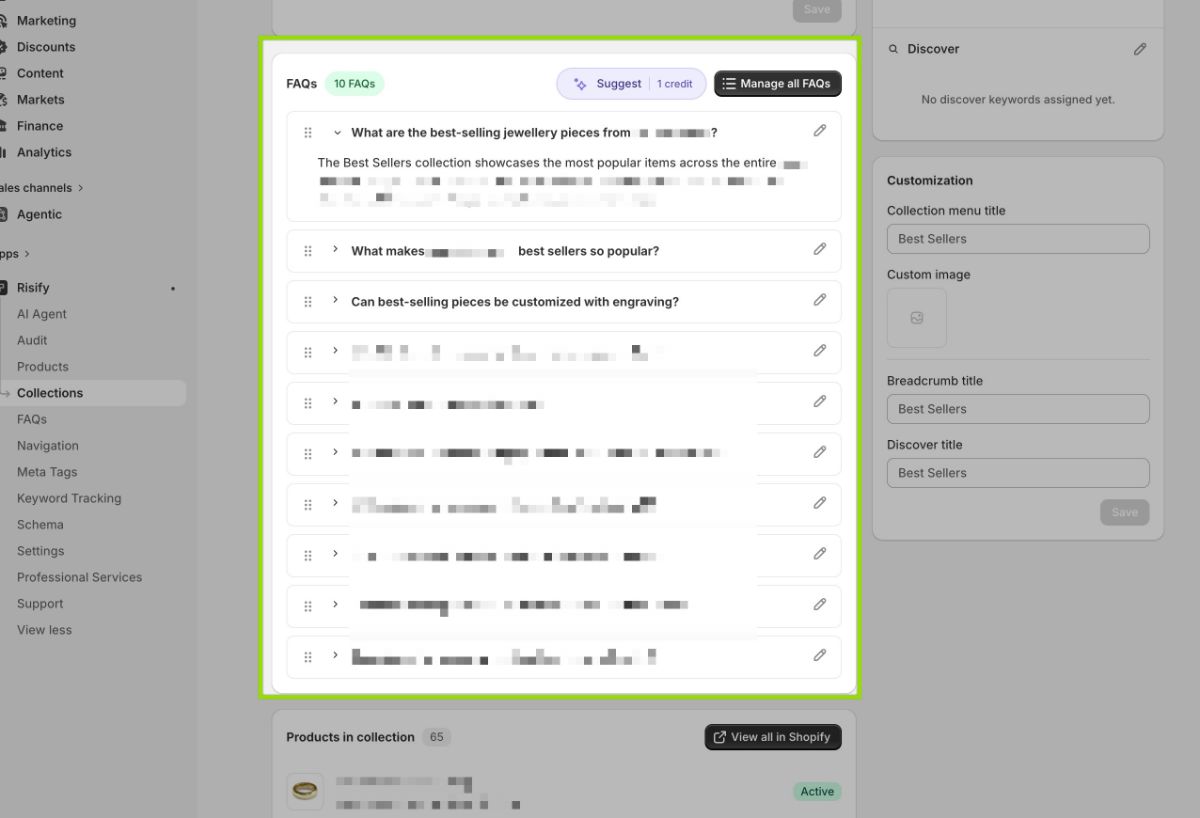
The FAQs section shows all frequently asked questions assigned to this collection.
Each FAQ is listed with its question, answer preview, and an edit button. You can review, edit, or remove individual FAQs directly from this view.
Click Manage all FAQs to open Risify's full FAQ management screen, where you can create new FAQs, assign them to other pages, or use the AI Generator to create more.
Note: For a complete walkthrough of creating and assigning FAQs, see the FAQ setup guide .
Products in Collection
The Products in collection section lists all products that belong to this collection. Each product row shows the product name, its handle (URL slug), and its current status (Active, Draft, or Archived).
This gives you a quick reference to see what is inside the collection without leaving the page. Click View all in Shopify to open the full product list in your Shopify admin if you need to make changes to the products themselves.
Target Keywords
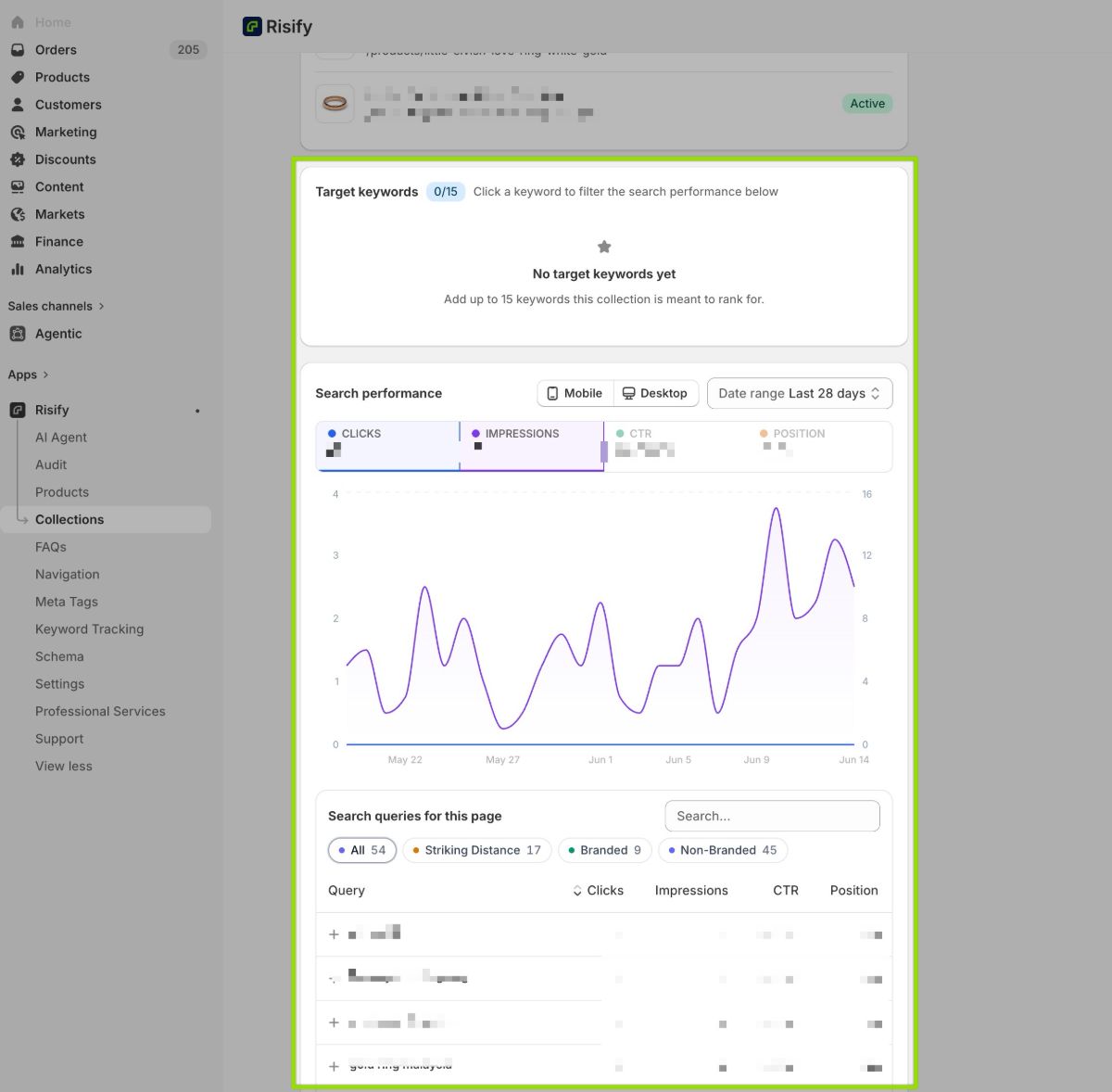
The Target keywords section lets you assign up to 15 keywords that this collection is meant to rank for. These keywords help you stay focused on your SEO goals for the page.
Target keywords are specific to each collection page. They are separate from the broader keyword tracking feature, which monitors your store's rankings across all pages.
Note: For store-wide keyword tracking and ranking monitoring, see the Keyword Tracking guide .
Search Performance
The Search performance section displays data pulled from Google Search Console (if connected). It shows four key metrics for this specific collection page:
- Clicks: How many times users clicked on this page from Google search results.
- Impressions: How many times this page appeared in search results.
- CTR: The click-through rate (clicks divided by impressions).
- Position: The average ranking position of this page in search results.
You can toggle between Mobile and Desktop to see how performance differs across devices. Use the Date range dropdown to adjust the reporting period.
A chart below the metrics visualizes clicks and impressions over time, so you can spot trends and see how changes to the page affect its search visibility.
Search Queries for This Page
Below the performance chart, the Search queries table shows the actual search terms that triggered this collection page in Google results. For each query, you see clicks, impressions, CTR, and average position.
The table includes filters to help you focus on what matters:
- All: Every query associated with this page.
- Striking Distance: Queries where the page ranks close to page one (positions 11-20), representing quick-win opportunities.
- Branded: Queries that include your brand name.
- Non-Branded: Queries without your brand name, showing how well you rank for generic terms.
You can use this data to identify which search terms are already driving traffic, which ones are close to breaking through, and where you might need to adjust your content or meta tags.
Summary
The collection page in Risify consolidates everything you need to manage a single collection's search presence.
From one screen, you can check and improve your SEO score, edit your search engine listing and description, manage FAQs, review which products belong to the collection, track target keywords, monitor search performance data from Google Search Console, and configure navigation and display settings.
Each section connects to Risify's dedicated features, so you can go deeper when needed while always having a clear overview of where things stand.