A slow Shopify store costs you money. Google’s data shows that when page load time goes from 1 second to 3 seconds, bounce probability increases by 32%. At 5 seconds, it jumps to 90%.
Every extra second of load time directly reduces your conversion rate, your search rankings, and your return on ad spend.
Page speed is also a confirmed ranking factor. Google uses Core Web Vitals, a set of performance metrics, to evaluate your site’s user experience. Stores that score poorly load lower in search results, get less organic traffic, and pay more per click on Google Ads.
Shopify stores already have an advantage: the platform’s infrastructure is fast by default. But your theme choices, apps, images, and third-party scripts can undo that advantage quickly. This guide covers the changes that make the biggest difference.
How to Measure Your Store’s Current Speed
Before optimizing anything, measure where you stand. Test your store with these tools to get a baseline:
- Google PageSpeed Insights : Enter your store URL and get scores for both Mobile and Desktop. Aim for 60–80 on mobile and 80–95 on desktop. Scores below 50 on mobile indicate significant problems.
- Shopify’s built-in speed report: In your Shopify admin, go to Online Store > Themes. Shopify shows how your store performs compared to similar Shopify stores
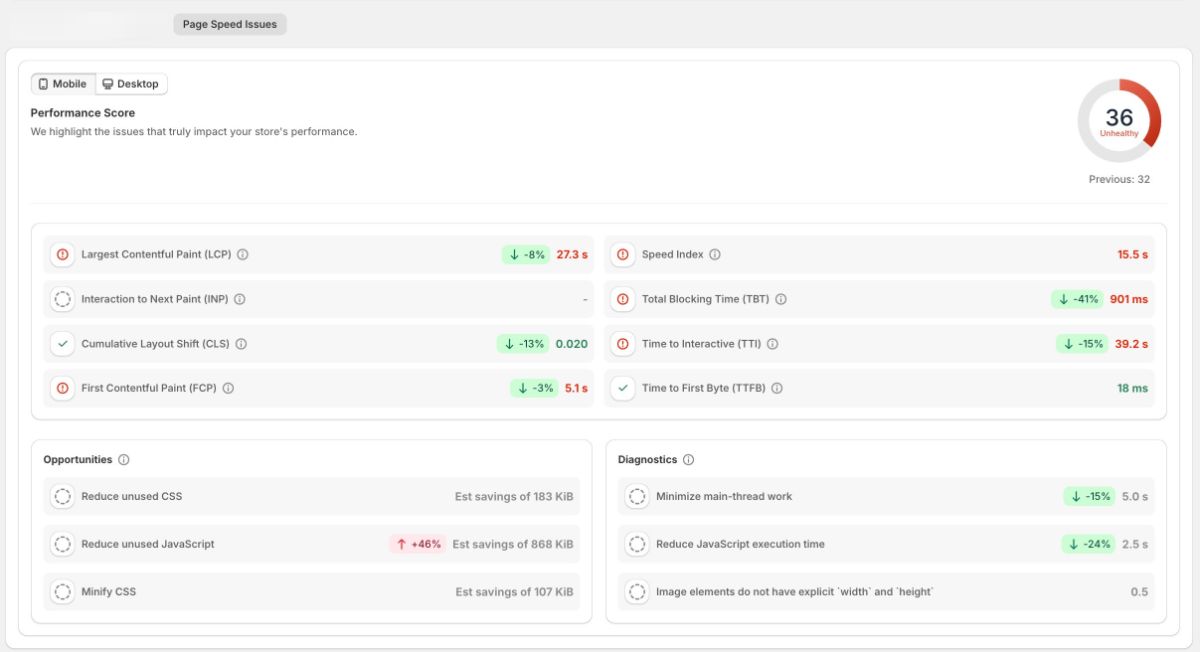
- Risify Store Audit: Risify’s Audit gives you a clear starting point and a measurable path forward. Every scan turns complex technical checks into simple, actionable insights across three categories: broken links, meta issues, and page speed.
Test from mobile first. Over 70% of e-commerce traffic comes from mobile devices, and Google uses mobile-first indexing, meaning your mobile performance determines your search ranking.
Core Web Vitals: What Google Measures
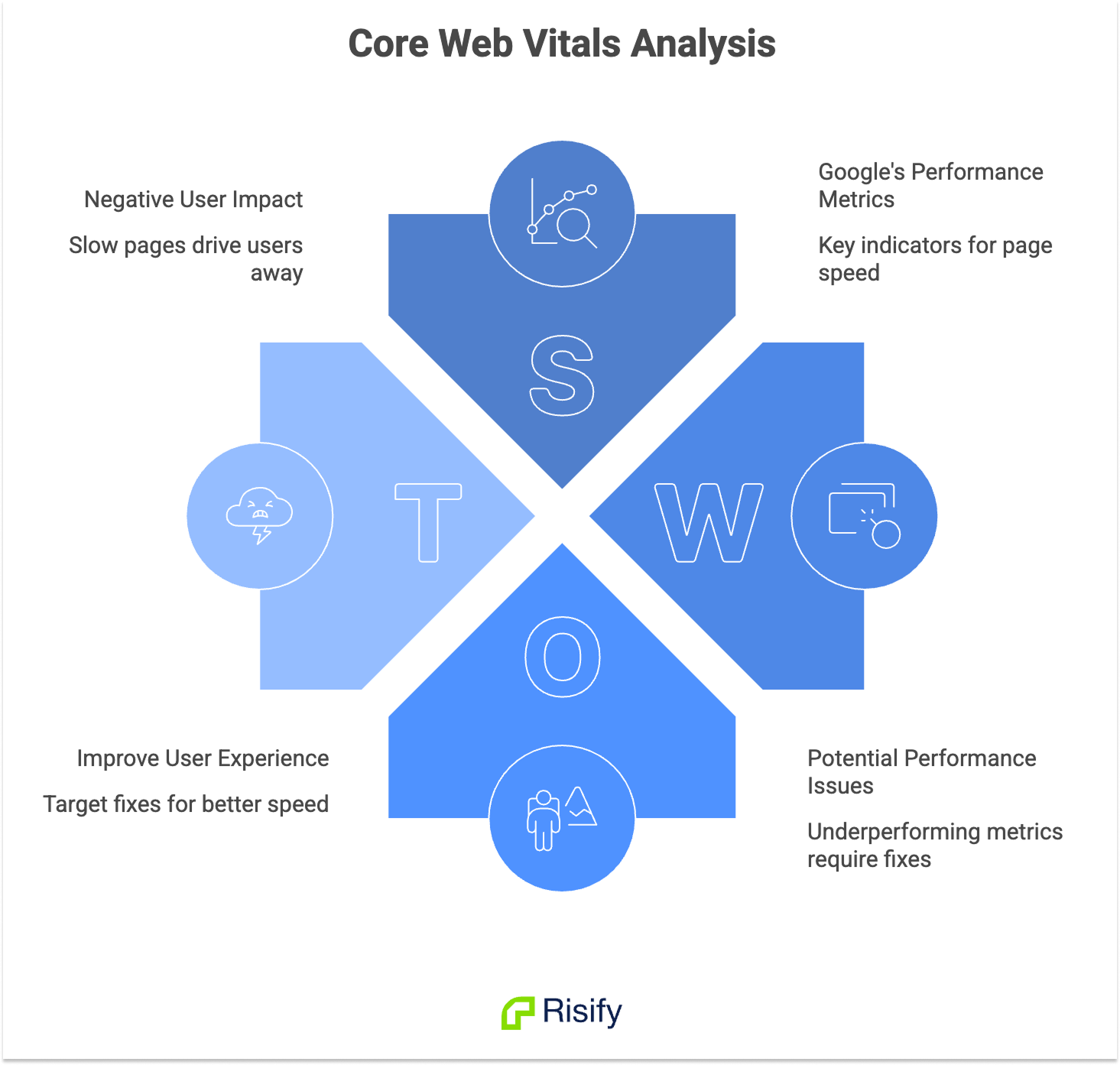
Google evaluates page speed through three Core Web Vitals. Understanding what each one measures helps you target the right fixes.
- Largest Contentful Paint (LCP): Measures how long it takes for the largest visible element (usually a hero image or main text block) to load. Target: under 2.5 seconds.
- Cumulative Layout Shift (CLS): Measures how much page elements move unexpectedly during loading. Shifting banners, late-loading images, and font swaps cause high CLS. Target: under 0.1.
- Interaction to Next Paint (INP): Measures how quickly the page responds when a user taps a button, opens a menu, or interacts with a filter. Target: under 200 milliseconds.
Supporting metrics like First Contentful Paint (FCP), Time to First Byte (TTFB), Speed Index, and Total Blocking Time (TBT) help you diagnose the root cause when a Core Web Vital is underperforming.
The Fixes That Make the Biggest Difference
These optimizations are listed in order of impact. Start at the top and work down.
1. Optimize Your Images
Images typically make up 50–70% of a Shopify page’s total weight. Unoptimized product photos, hero banners, and lifestyle images are the single most common cause of slow stores.
- Resize before uploading. Do not upload 4000×4000 pixel images when they display at 800×800. Resize images to their actual display dimensions before adding them to Shopify.
- Use WebP format. WebP provides 25–35% better compression than JPEG or PNG with no visible quality loss. Shopify automatically serves WebP to browsers that support it, but the source file still matters.
- Compress aggressively. Use tools like TinyPNG or Shopify’s built-in image compression. Keep hero images under 150 KB and product images under 200 KB.
- Enable lazy loading. Lazy loading delays off-screen images until the user scrolls to them, reducing the initial page load. Most modern Shopify themes support this natively. Do not lazy-load your hero image or main product image, those need to load immediately.
2. Remove Unused Apps
Every Shopify app you install adds JavaScript, CSS, and sometimes tracking scripts to your storefront. Even apps you are not actively using can still inject code that slows your pages.
- Delete apps you are not using. Disabling is not enough, uninstall them completely.
- After uninstalling, check your theme files for leftover code snippets. Many apps leave residual code behind that continues to load.
- Where possible, replace multiple single-purpose apps with one multi-function app.
- Prefer apps that use Shopify’s app embed system instead of injecting code directly into your theme.
If your store has more than 20 apps installed, an app audit should be your first optimization step.
3. Choose a Lightweight Theme
Your Shopify theme is the foundation of your store’s speed. Older themes and heavily customized themes often carry bloated code that drags performance down.
Modern Shopify Online Store 2.0 themes are built for performance. If you are using an older theme, consider migrating to a newer one. Test any new theme in a development environment before switching to make sure all your features work correctly.
If migration is not an option, reduce the number of sections on your homepage and collection templates. Each section adds code that needs to load.
4. Reduce Third-Party Scripts
Chat widgets, heatmaps, tracking pixels, social media embeds, and popup tools all add external JavaScript requests. Each one adds latency because the browser has to contact a separate server to load the script.
- Keep only the tools you actively use and that directly contribute to conversions or customer experience.
- Load non-essential scripts asynchronously so they do not block the page from rendering.
- Consolidate tracking into a single tag manager (like Google Tag Manager) instead of loading each pixel separately.
5. Limit Custom Fonts
Custom fonts require additional network requests and can cause layout shifts while they load. If you use a custom font, load only the weights and styles you actually need. Use the font-display: swap CSS property so text appears immediately with a system font and swaps to the custom font once it loads. This prevents invisible text during page load.
6. Minimize Redirects
Every redirect adds an extra round trip between the browser and server. A few redirects are fine, but chains of redirects (page A redirects to B, which redirects to C) stack up and slow the experience. Audit your URL redirects periodically and clean up any chains. Link directly to final destination URLs wherever possible.
Test After Every Change
Run PageSpeed Insights after each optimization to measure the impact. Some changes make a dramatic difference; others are marginal. Testing tells you which fixes actually moved the needle for your specific store.
Make speed testing part of your routine: check after installing new apps, updating your theme, or adding new sections to key pages.
How Risify Helps You Monitor Page Speed
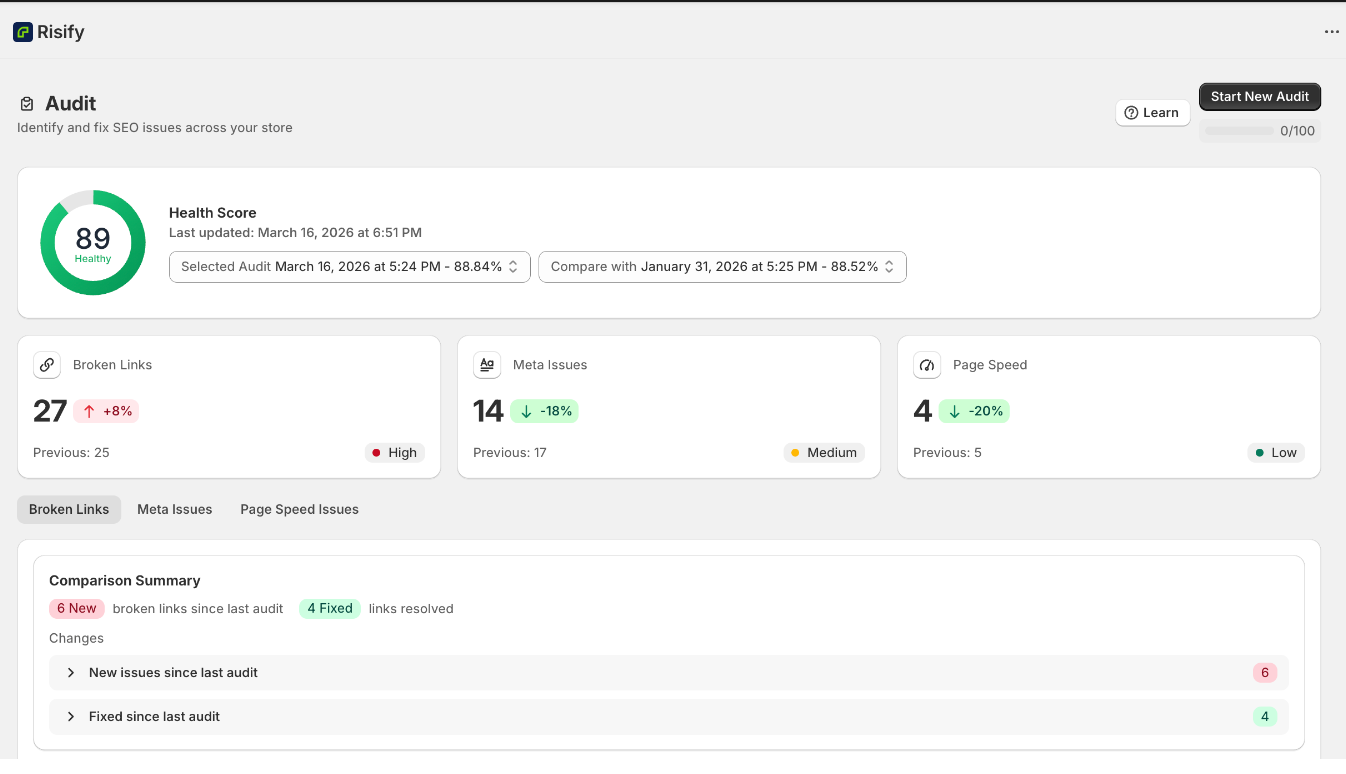
Risify’s Store Audit includes a Page Speed section that tests your store’s loading performance for both Mobile and Desktop.
It reports your Performance Score along with detailed metrics including LCP, FCP, CLS, INP, TTFB, Speed Index, TBT, and TTI.
The audit also surfaces specific Opportunities (suggestions for improvement) and Diagnostics (technical checks) so you know exactly where to focus.
While Risify does not make these changes automatically, it gives you a clear, ongoing view of your store’s speed performance so you can identify issues early and track the impact of your fixes over time.