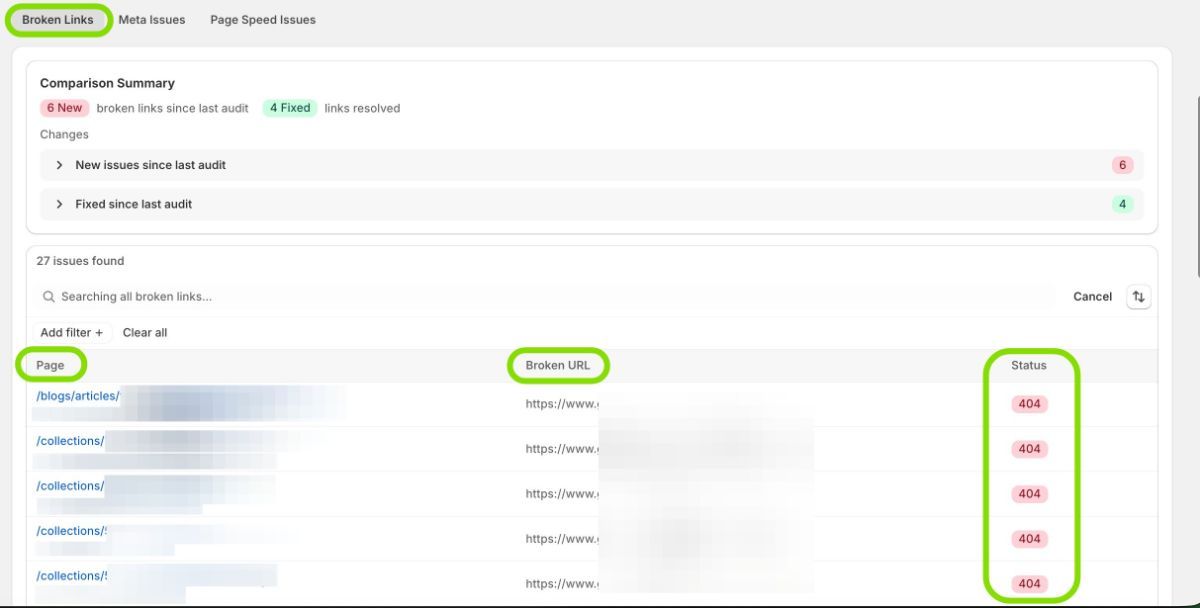
The Broken Links tab in Risify’s Store Audit shows every link on your store that points to a page returning a 404 error. These are links where a visitor or search engine tries to reach a page and gets a “Page Not Found” message instead.
Broken links hurt both user experience and SEO. Visitors lose trust when they hit dead pages, and search engines waste crawl budget following links that lead nowhere. Fixing them is one of the fastest ways to improve your Health Score.
What the Broken Links Tab Shows
Comparison Summary
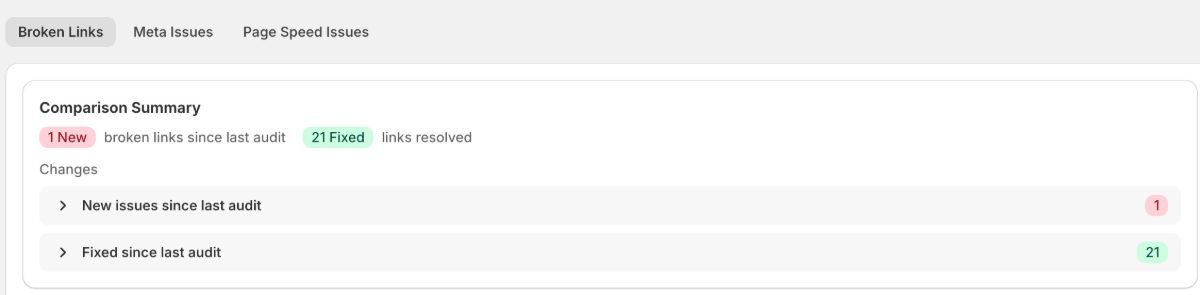
At the top of the tab, you will see a Comparison Summary that shows two numbers:
- New: How many new broken links have appeared since your last audit.
- Fixed: How many previously broken links have been resolved since your last audit.
Below the summary, you can expand two sections: “New issues since last audit” and “Fixed since last audit.” These let you see exactly what changed between scans.
The Issue Table
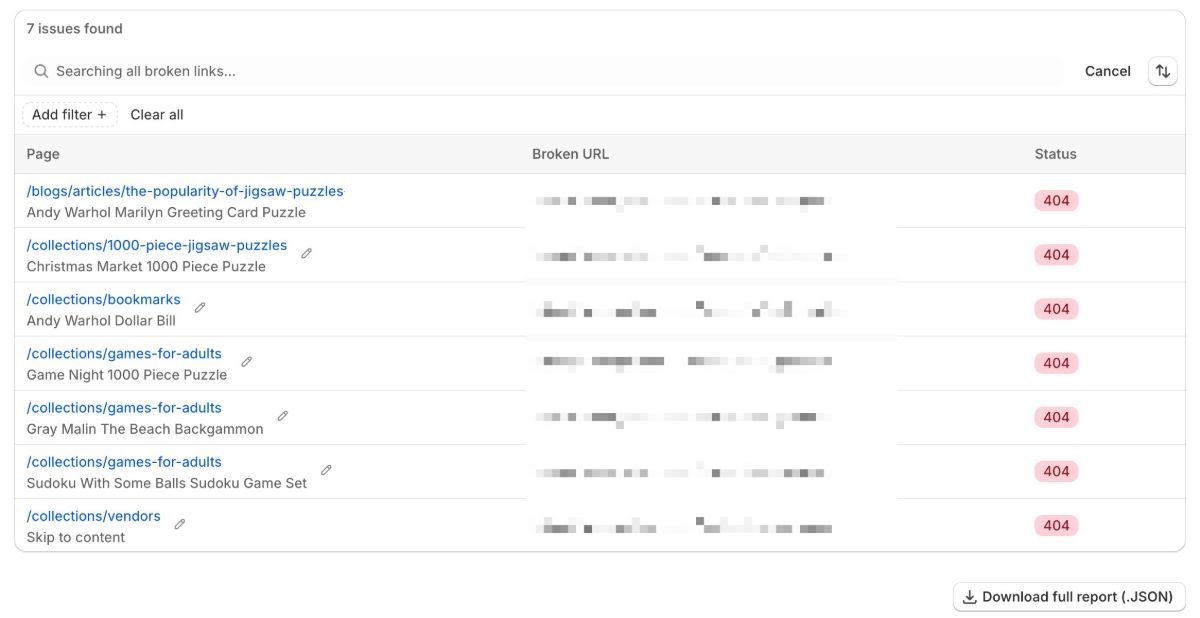
Below the comparison, the audit lists every broken link found. For each one, you will see three columns:
- Page: The page on your store where the broken link exists. This is the source, the page that contains the link. It shows the URL path and the product or page name.
- Broken URL: The destination URL that is returning a 404 error. This is the link that is broken.
- Status: The HTTP status code, which will show 404 for broken links.
You can search and filter the list to find specific pages or URLs. The total number of issues is shown above the table.
At the bottom of the page, a Download full report (JSON) button lets you export the complete broken link data for further analysis or to share with your team.
How to Fix Broken Links
Risify identifies broken links but does not fix them automatically. You need to take action in Shopify. There are two approaches depending on the situation:
Option 1: Set Up a 301 Redirect
If the broken URL used to point to a real page that has moved or been replaced, create a 301 redirect to send visitors to the correct page.
In Shopify admin, go to Online Store → Navigation → URL Redirects. Click Create URL Redirect, enter the broken URL in the “Redirect from” field and the correct working URL in the “Redirect to” field, then save.
Option 2: Fix the Link at the Source
If the broken link is an internal link you control (in a product description, blog post, or navigation menu), update it directly to point to the correct URL. This is cleaner than adding a redirect because it removes the extra hop.
Check the Page column in the audit to see exactly where the broken link lives, then go to that page in your Shopify admin and update the link.
For a more detailed guide on finding and fixing broken links, including bulk redirect imports and custom 404 pages, see How to Find and Fix Broken Links on Your Shopify Store .
Common Causes of Broken Links
- Deleted products or collections: When you remove a product, its URL stops working. Any link pointing to it becomes broken.
- Changed URL handles: Editing a product or collection handle changes the URL without creating an automatic redirect.
- Typos: Manually typed URLs in descriptions or blog posts can contain errors.
- External pages removed: Links to partner sites, external resources, or old campaigns that no longer exist.
Tips
- Fix broken links with the highest traffic first. If a broken link is on your homepage or a bestselling product, that is your priority.
- Always create a redirect when you delete or rename a product. Do this at the time of deletion, not weeks later.
- Run audits regularly to catch new broken links before they accumulate.
- Use the Comparison Summary to confirm your fixes worked. After fixing links, run a new audit and check that the “Fixed” count matches what you repaired.