Stores with large catalogs often have inconsistent metadata: some products have custom titles, others use defaults, some descriptions are detailed while others are empty. Risify's Meta Tags page lists every product, collection and page in one view, counts the problems for you, and lets you fix them without opening items individually.
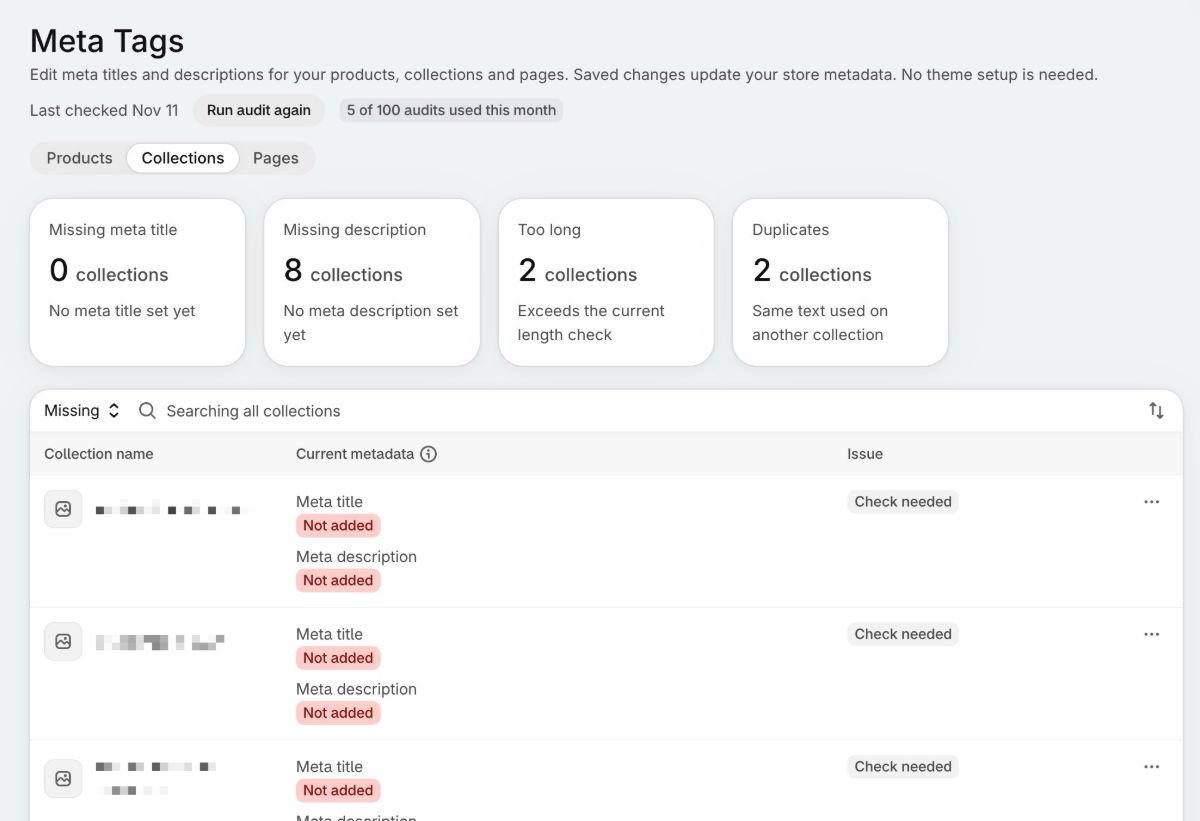
- View all products, collections and pages with their meta titles and descriptions in a single list.
- Summary cards show how many items have a missing title, a missing description, text that is too long, or duplicate text.
- Switch the list to just the items that need attention.
- Edit any item in place, with a Google preview, or let Risify AI suggest tags for up to 50 items at once.
- Changes apply directly to Shopify's native SEO fields. No theme setup needed.
Why Large Catalogs Have Inconsistent Metadata
Products get added at different times, by different people, with different levels of attention. Older products may have no custom metadata at all. Newer products might have been optimized individually. Some descriptions follow a format, others do not.
How This Happens
Several patterns lead to inconsistency:
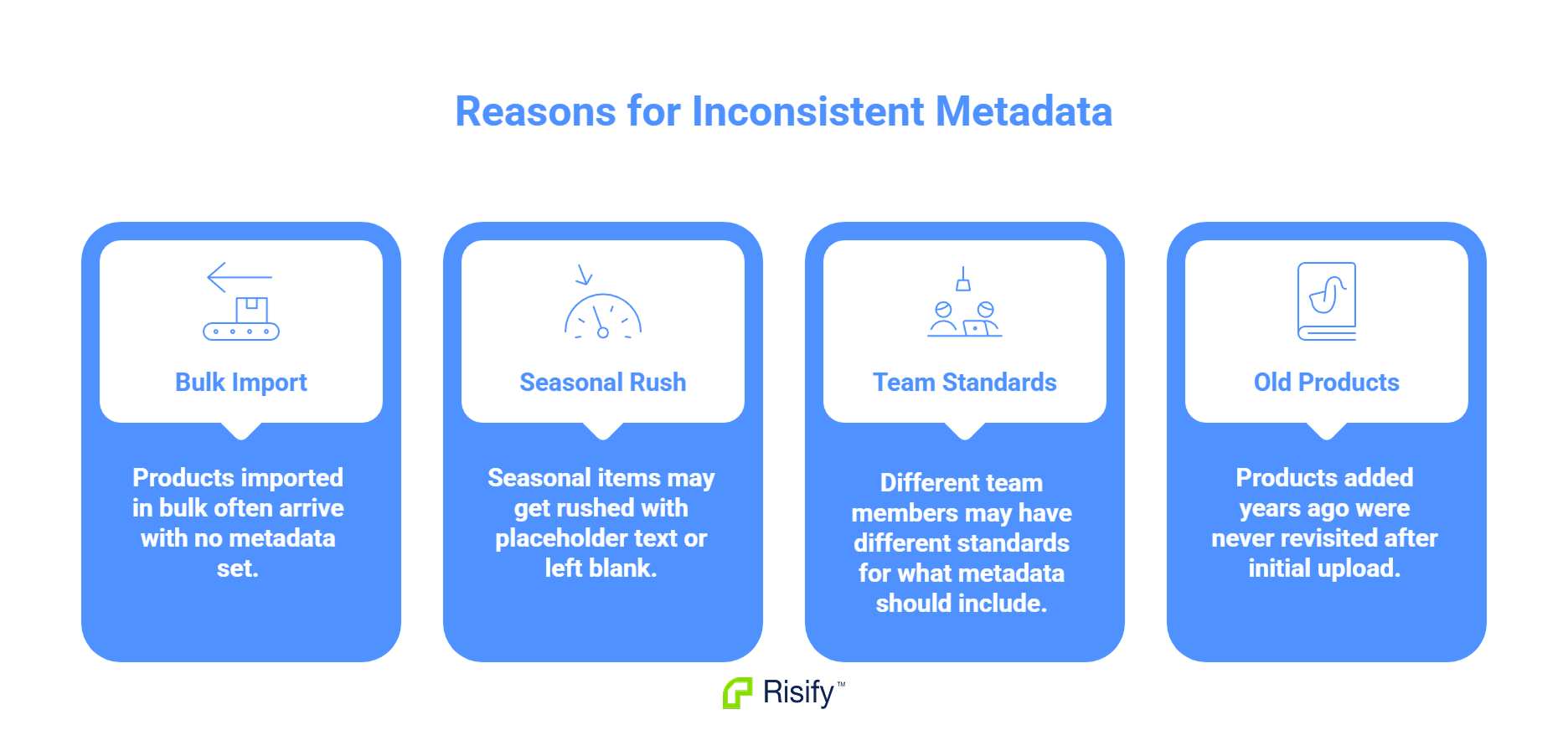
- Products imported in bulk often arrive with no metadata set.
- Seasonal items get rushed with placeholder text or left blank.
- Different team members have different standards for what metadata should include.
- Products added years ago were never revisited after upload.
- Collections and content pages get created for navigation and never get a description.
Over months and years, the catalog becomes a patchwork. Some pages have carefully written titles and descriptions. Others have whatever Shopify generated by default, and some duplicate each other.
The Visibility Problem
In Shopify, checking metadata means opening each product, collection or page individually. With hundreds of items, auditing the full catalog is impractical. You do not know what state your metadata is in until you look at each page one by one.
Seeing the Whole Catalog at Once
Risify's Meta Tags page lists all your products, collections and pages with their current meta titles and descriptions in a single view.
Summary Cards
Each tab (Products, Collections, Pages) starts with four cards that count the problems in that part of your catalog:
- Missing meta title: no title set yet.
- Missing description: no description set yet.
- Too long: exceeds the current length check.
- Duplicates: the same text used on another item.
The counts come from the same check the AI & Search Audit runs, so they match the Meta issues in your audit. A Run audit again button at the top refreshes them.
The List
Below the cards, the table shows each item's current meta title and description, with a Not added label where one is missing, and an Issue column with the result of the last check. The dropdown next to the search box switches the view:
- Missing: items with no title or description (the default).
- Needs improvement: items whose metadata exists but fails a check.
- All issues: both of the above.
- Passes current checks: items with no problems.
- All: every item.
Use search, the Filter menu (by product type or vendor) and sorting to work through a specific part of the catalog.
Fixing Gaps Without Opening Each Item
Editing in Place
Open the three-dot menu on a row and choose Edit meta tags . The editor shows:
- Meta title and Meta description fields with character counts. Recommended lengths are 50 to 60 and 150 to 160 characters.
- Target keyword: choose a keyword you track or type a new one, so Risify AI's suggestion is relevant.
- Google preview: how the listing will look in search results, updated as you type.
Click Save . The change is written to Shopify's native SEO fields immediately.
Letting Risify AI Write Them
For one item, click Suggest in the editor and Risify AI writes the title and description from the item's content, your Brand instructions and the target keyword, for one AI credit.
For many items, click Suggest at the top of the page. Select up to 50 products, collections and pages, using the quick filters for items that need attention, and generate unique meta tags for all of them in one batch. Each item uses one credit. Review the results before they go live.
A Practical Approach
Start with collections. You have fewer of them than products, and collection pages often rank for high-value category terms. Switch the Collections tab to All issues and work down the list.
Move to products next. Use the summary cards to see where the biggest gaps are. If hundreds of products are missing descriptions, the bulk Suggest dialog is the fastest route; if a handful of bestsellers have weak titles, edit those by hand with a target keyword.
Finish with pages. Content pages such as Shipping or About are easy to forget and often have no metadata at all.
Maintaining Consistency
Once you have a format for your metadata, the summary cards tell you when new items break it. Check the Meta Tags page after adding products or collections, or after an import, and the counts show whether anything needs attention. The weekly audit flags new meta issues too.
Manage Your Metadata with Risify
Risify's Meta Tags page gives you visibility into your whole catalog's metadata without opening each item: counts of what is missing, too long or duplicated, a list you can narrow to the problems, in-place editing with a Google preview, and Risify AI to write tags at scale.